

Overview
Vehicles are easiest to manage when important details stay connected over time—VIN, odometer/engine hours, files, and maintenance history.
Adding a vehicle is simple: optionally add photos for AI suggestions, review the details, then create the vehicle. Nothing is saved until you confirm.
Step 1 — Photos (optional)
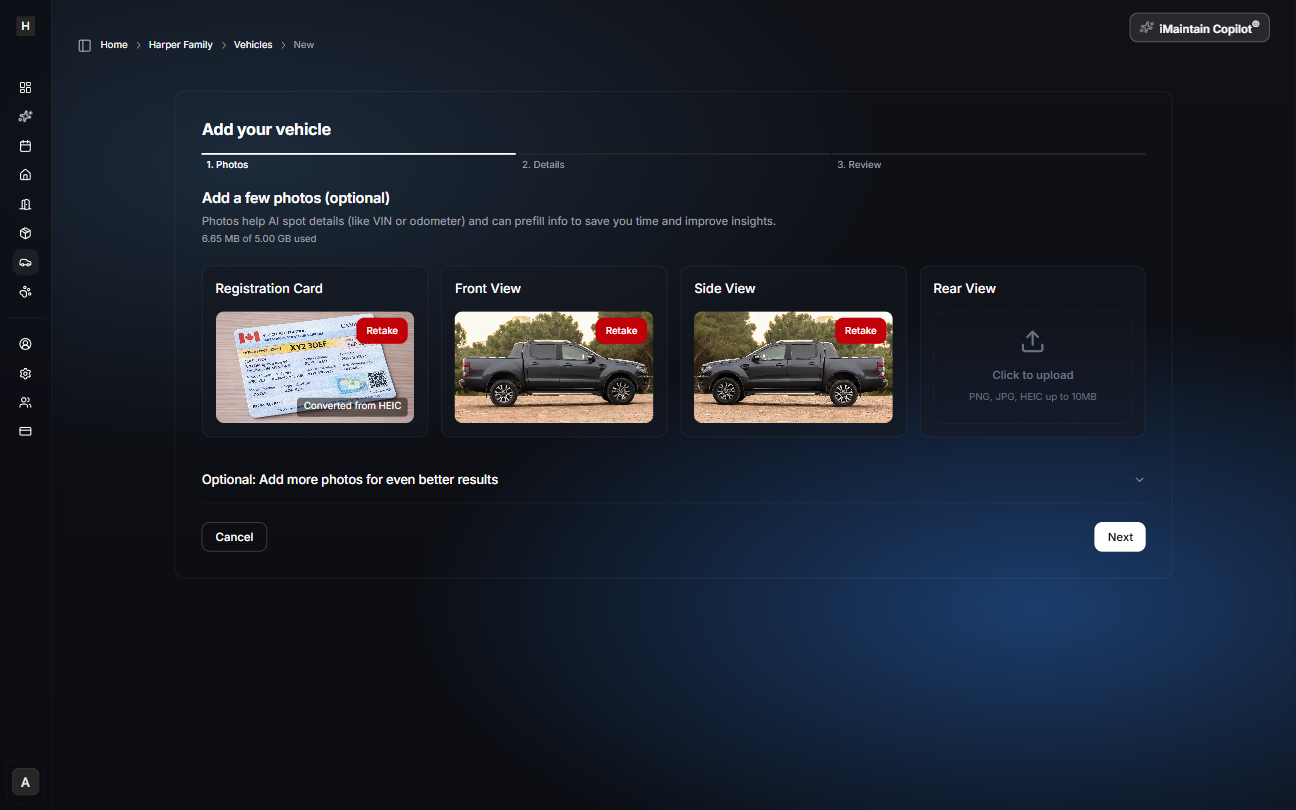
Add a few photos to help iMaintain spot key details (like VIN or odometer) and prefill information.
Recommended photos:
- Registration card
- Front, side, and rear views
If you don’t have photos yet, you can skip this step and still add the vehicle.
AI analysis (optional)
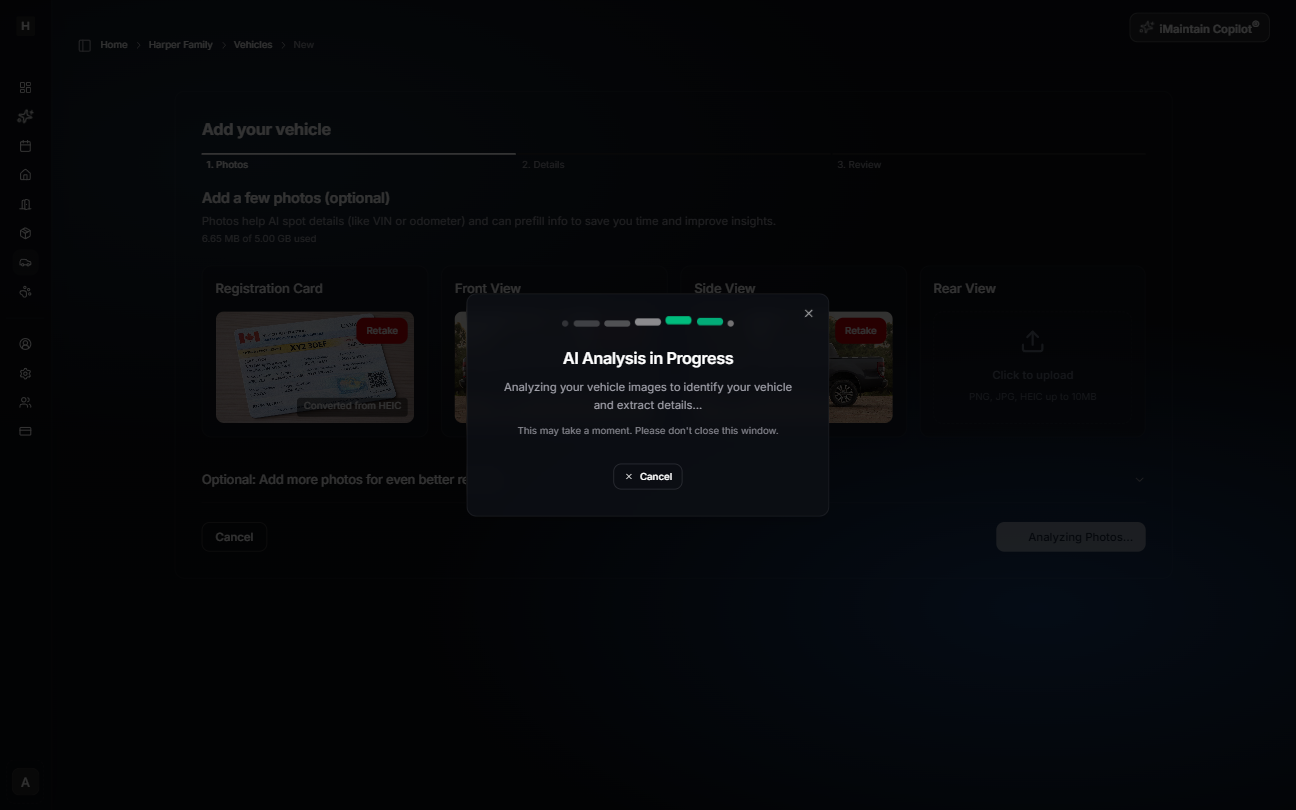
If you add photos, iMaintain will analyze them. This may take a moment.
Step 2 — Details
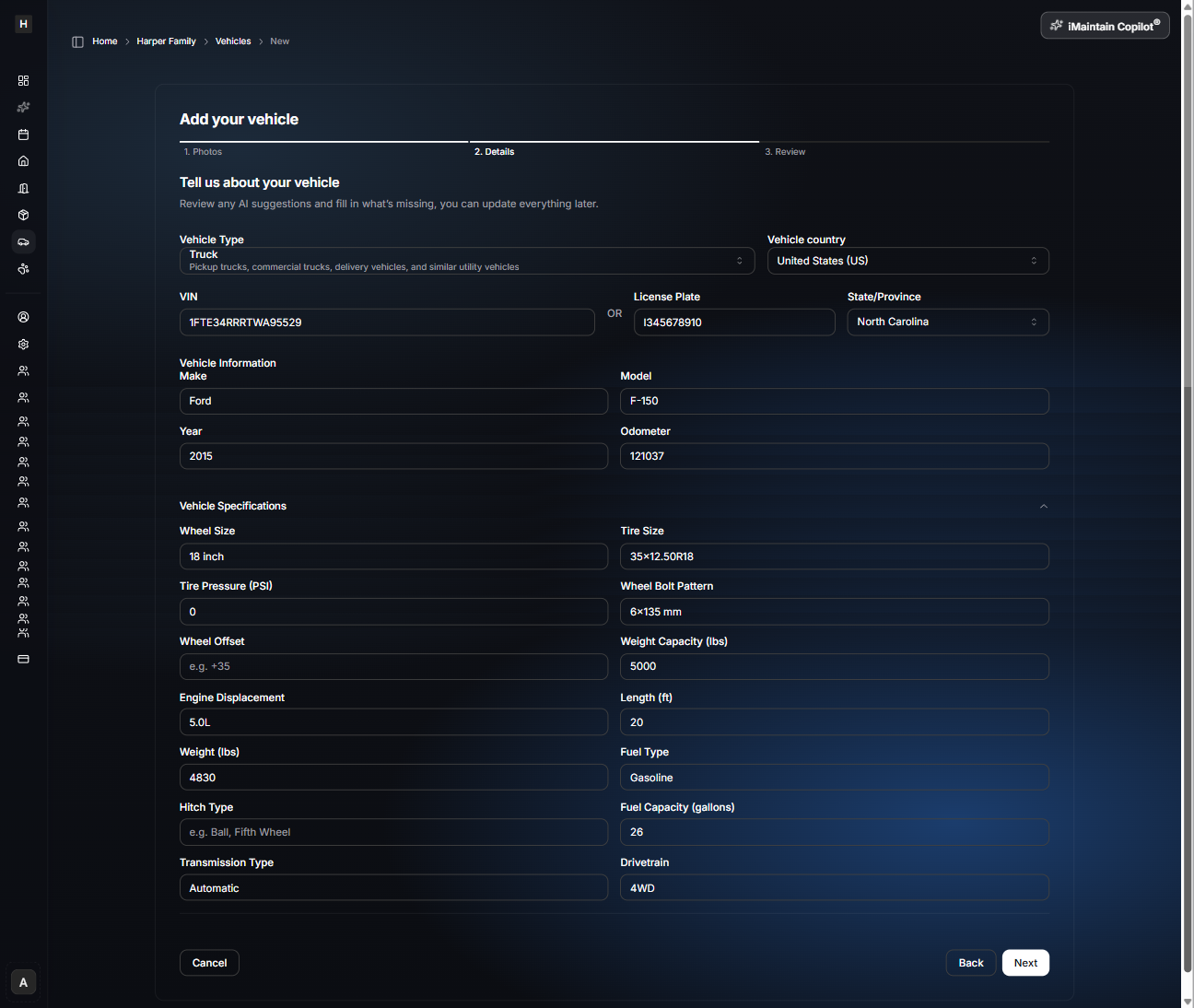
Review any AI suggestions and fill in what’s missing. You can update everything later.
Common details include:
- Vehicle type (car, truck, motorcycle, etc.)
- Usage type (personal, rental, fleet, business, etc.)
- VIN or license plate + state/province
- Make, model, year
- Odometer (or engine hours, depending on vehicle type)
If you choose Short-term rental, Long-term rental, Fleet, or Business as the usage type, iMaintain adds a Rentals section to the vehicle after it is created. Use that section to track trips, mileage, files, tasks, revenue, and costs.
You can also store helpful specs (like wheel/tire size, drivetrain, and capacities) if you want them available later.
Step 3 — Review & create
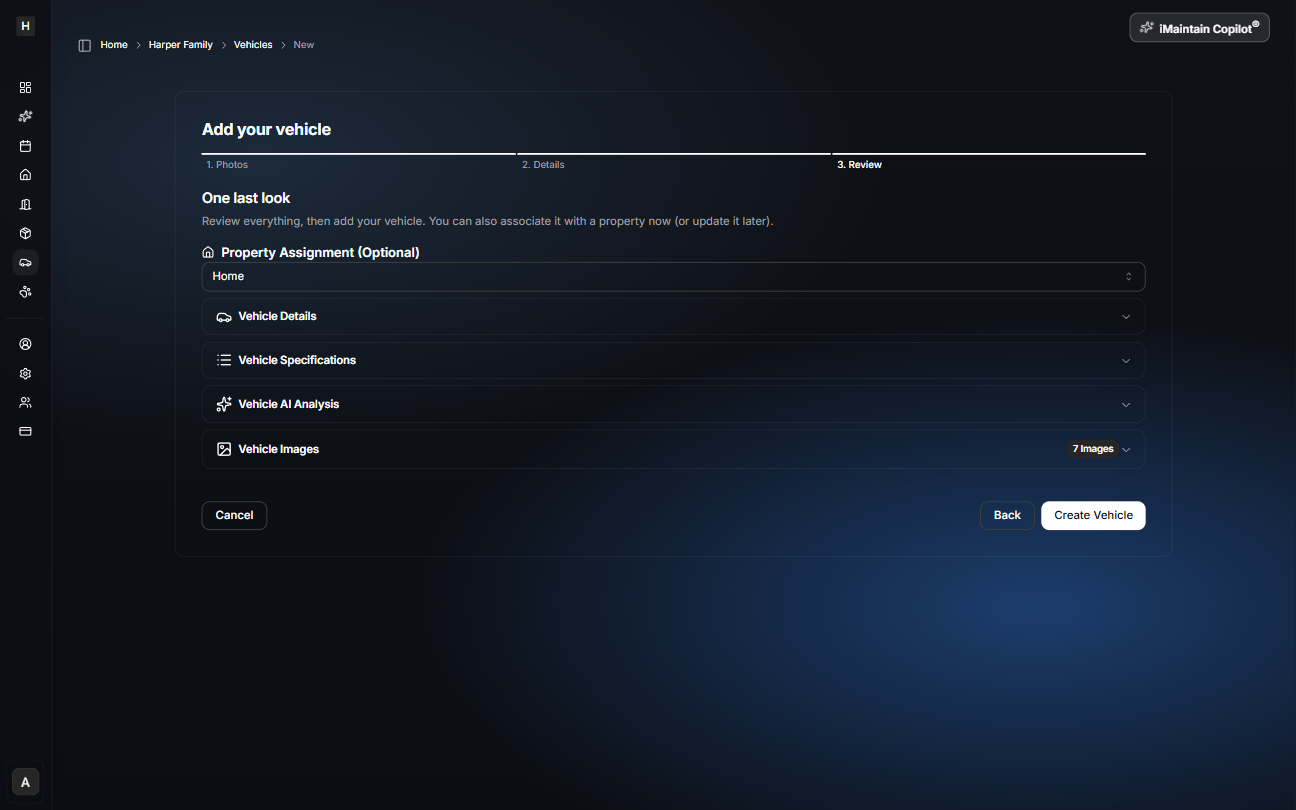
In the final step, confirm everything before creating the vehicle.
You can optionally associate the vehicle to a property now (or update it later). Review each section, then click Create Vehicle.
After saving
Once created, you can:
- Track maintenance schedules, reminders, and history
- Upload receipts, service records, and photos
- Keep notes (tire info, quirks, where the spare tool is stored, etc.)
- Use iMaintain Copilot to summarize, plan, and generate reports