
Viewing spaces
Browse rooms and areas across properties using cards or a table view.
Overview
Spaces are easiest to manage when you can answer simple questions quickly:
- What rooms and areas do we have?
- Which property is this space in?
- What’s connected to this space (inventory, files, notes, maintenance)?
iMaintain gives you multiple ways to view spaces—whether you’re doing a quick scan on mobile or a deeper review on desktop.
Where you can view spaces
You can view spaces:
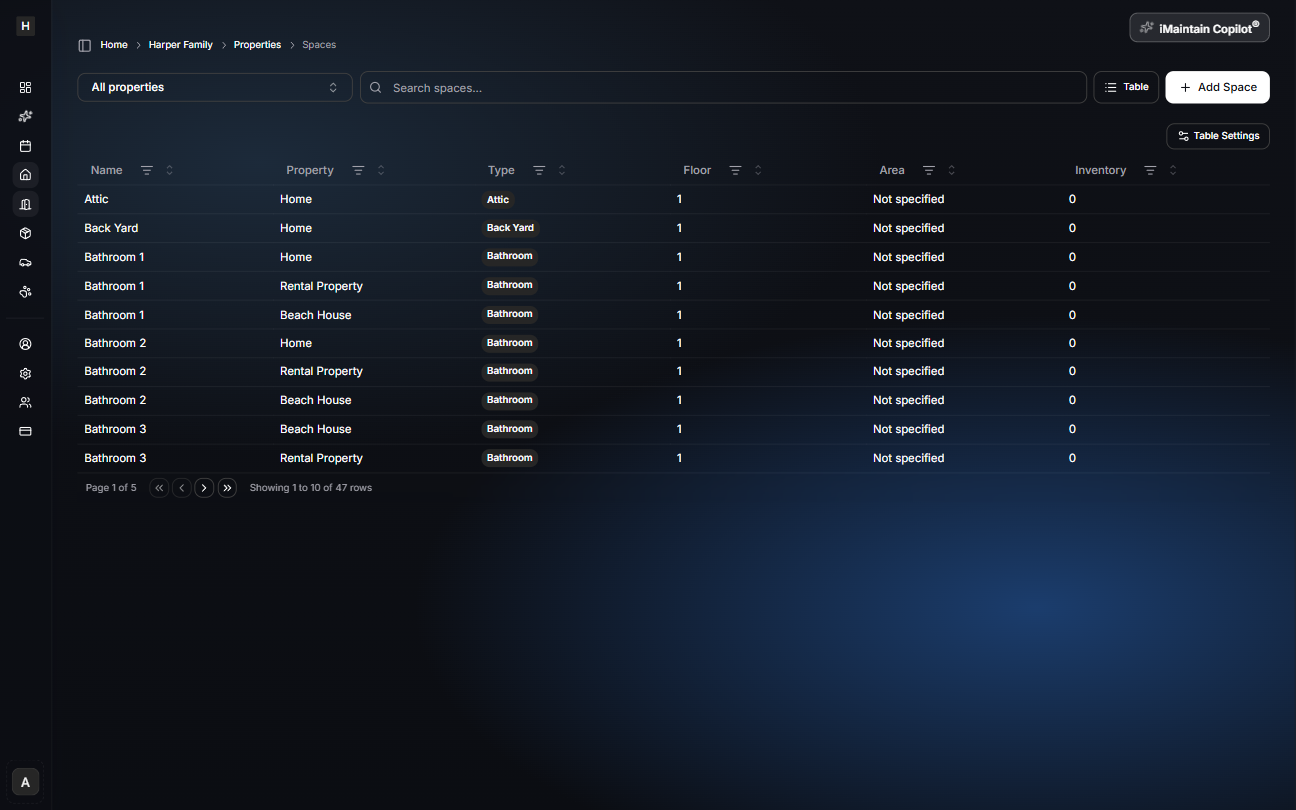
- Across all properties (All properties)
- Within a single property (filter the list)
Search, filter, and sort
Use the search bar to find a space by name (for example “Kitchen” or “Back Yard”).
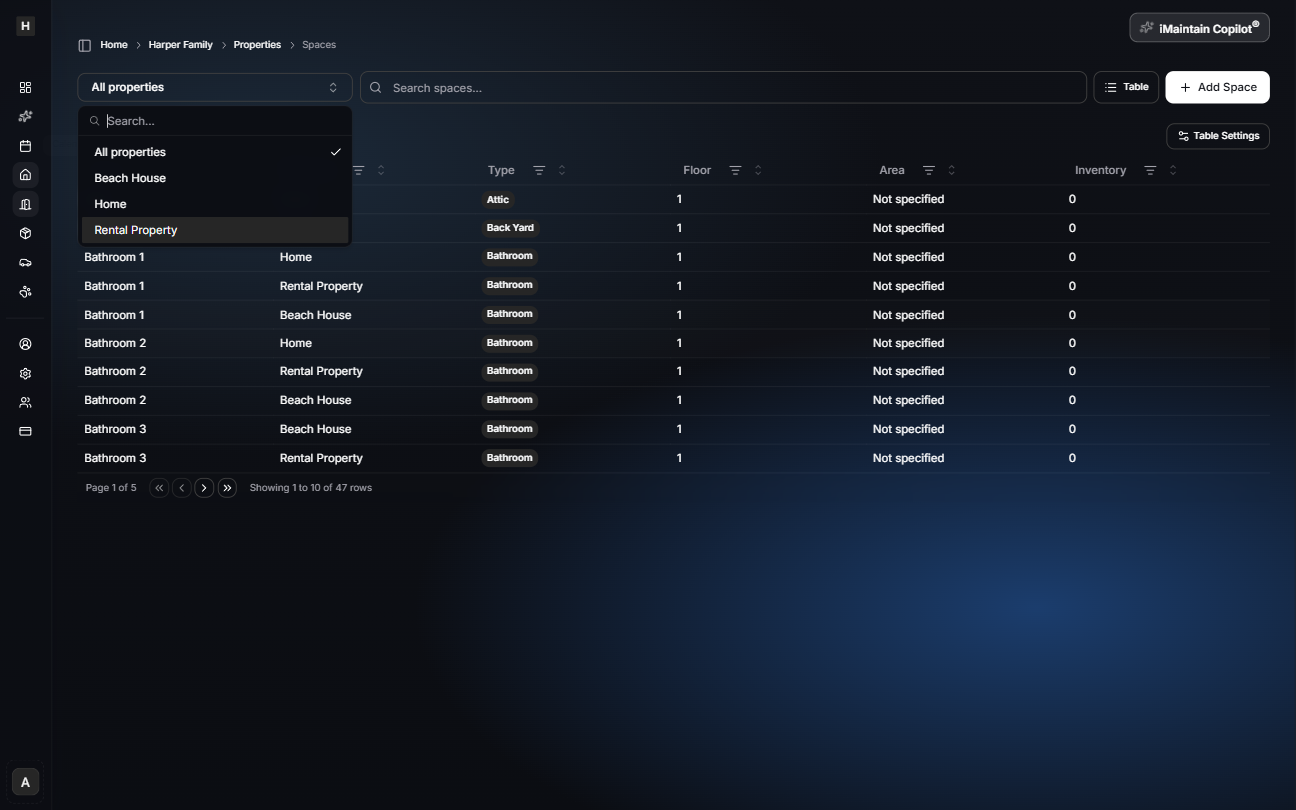
Filter by property
Use the property dropdown to focus your view on one home or rental.
Customize table columns
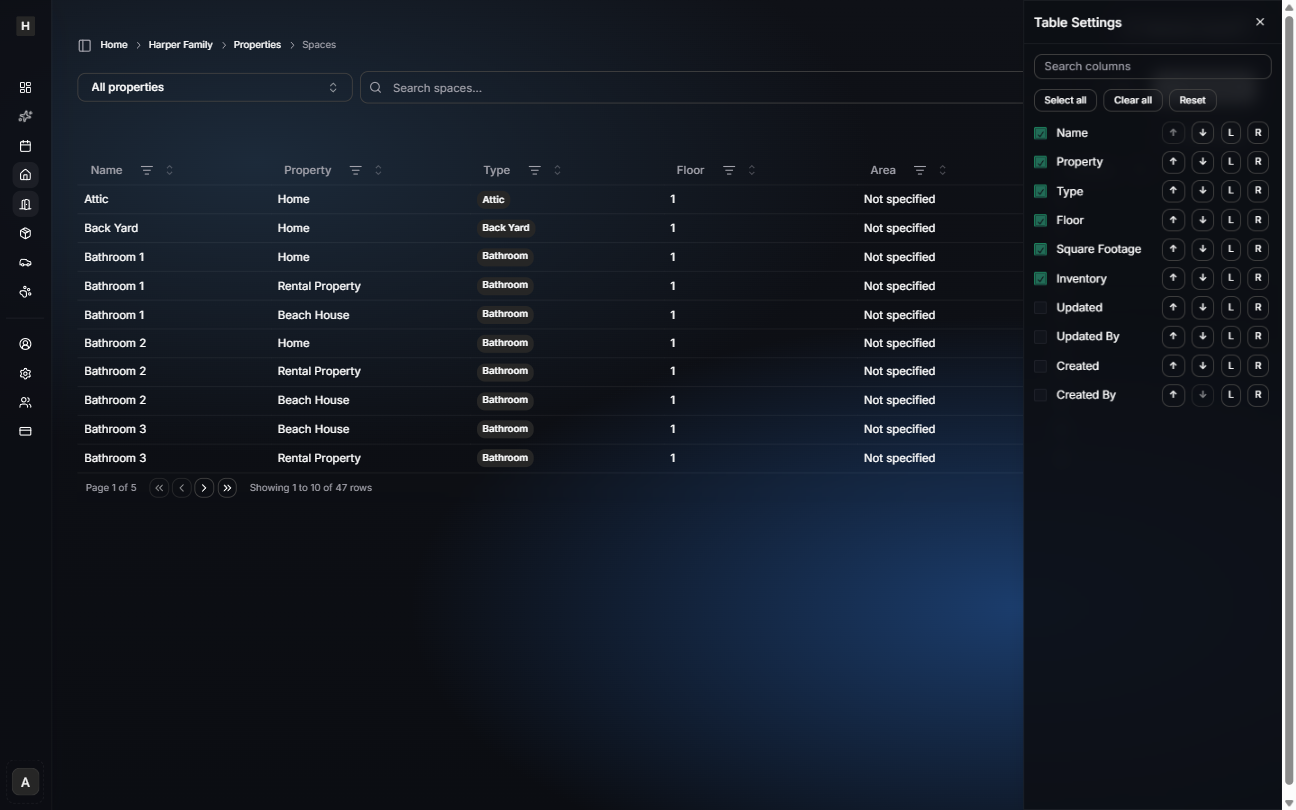
In table view, you can choose which columns to show (and keep the table focused on what matters for you).
Cards vs table view
- Cards are great for visual browsing and quick scanning.
- Table view is ideal when you have lots of spaces and want sorting and column control.
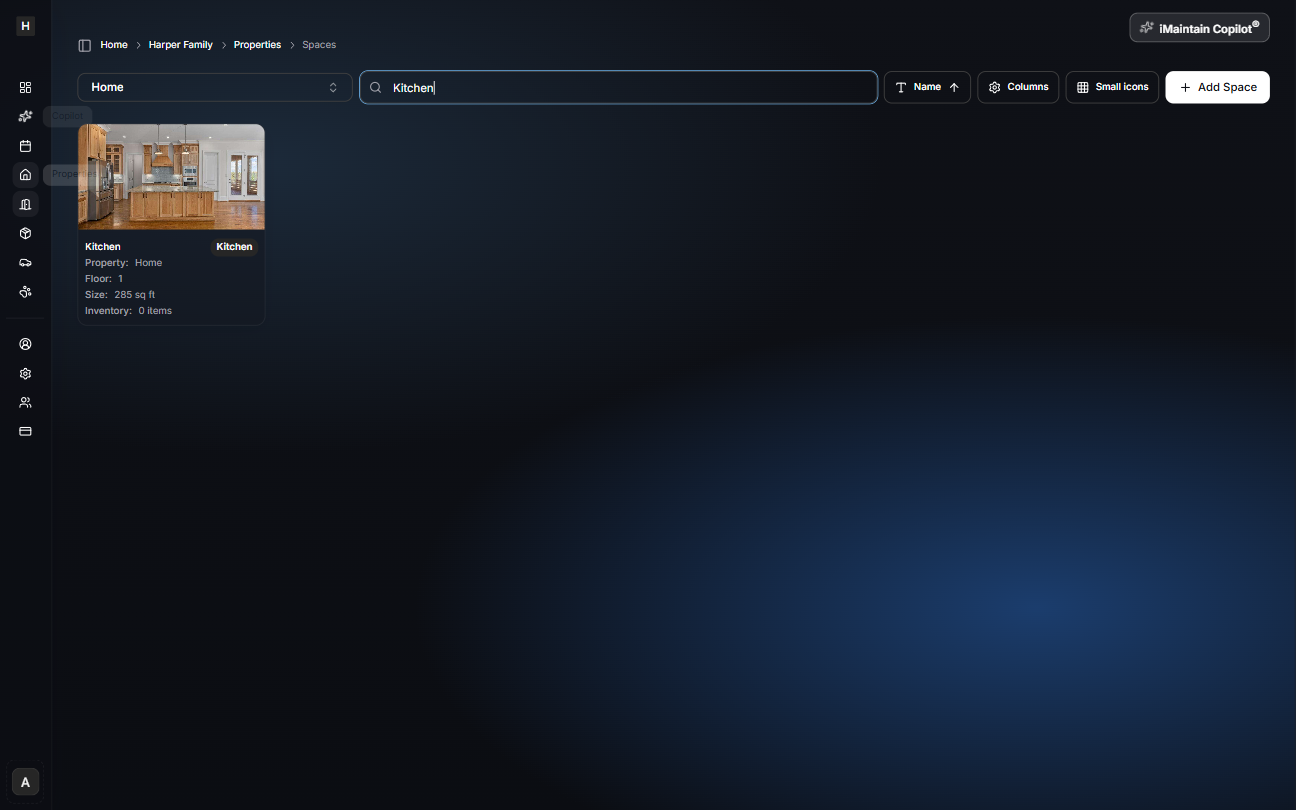
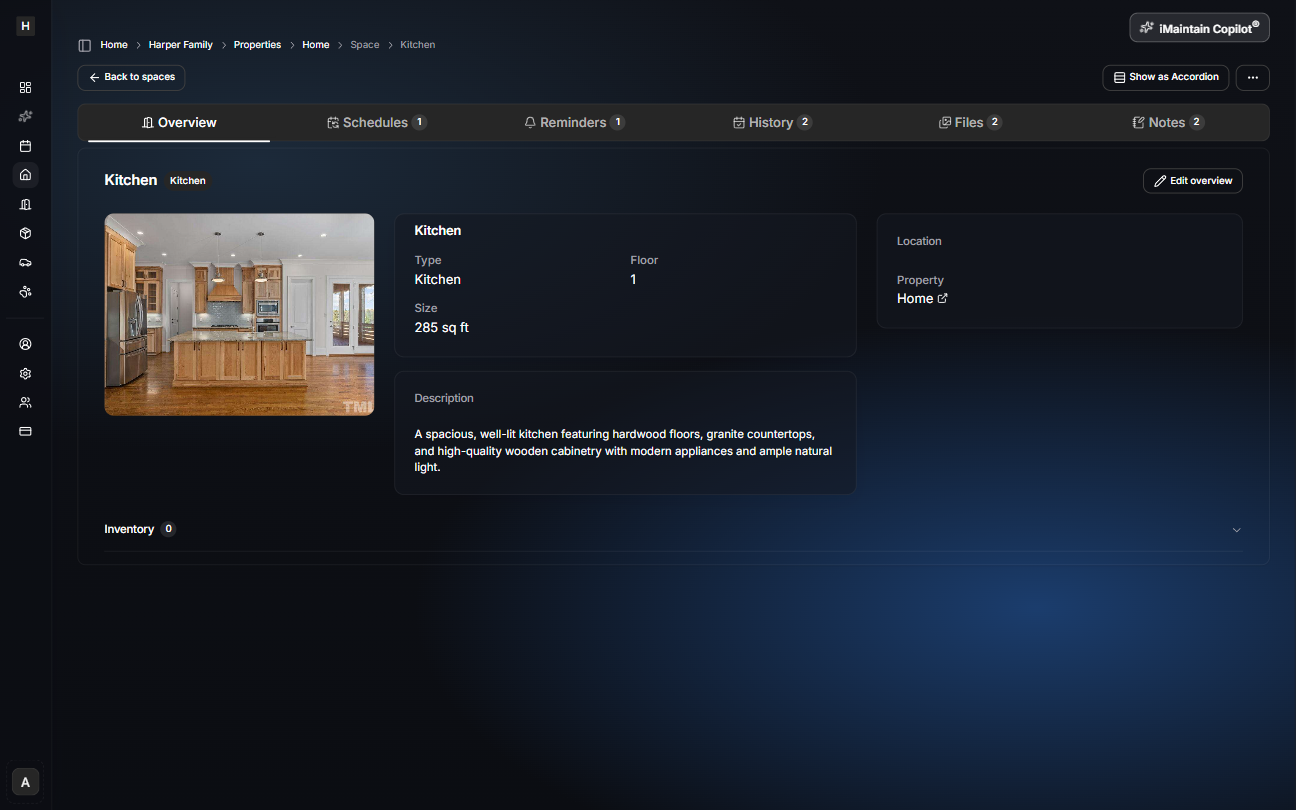
Open a space for details
Select any space to open its detail page. This is where you’ll find everything connected to the space over time—including schedules, reminders, history, files, and notes.