

Space maintenance
Schedules, reminders, and history for space-level care.
Overview
Spaces aren’t just labels—they’re a practical way to track maintenance by location.
Use space-level maintenance for tasks like:
- Under-sink inspections and shutoff checks (Kitchen, Laundry)
- Seasonal checks (Basement, Attic, Garage)
- Filters, vents, and fixtures (Utility rooms, bathrooms)
Everything you add stays connected to the space over time: Schedules, Reminders, and History.
Schedules
Schedules are your plan. Create one-time or recurring tasks and keep them tied to the space where the work happens.
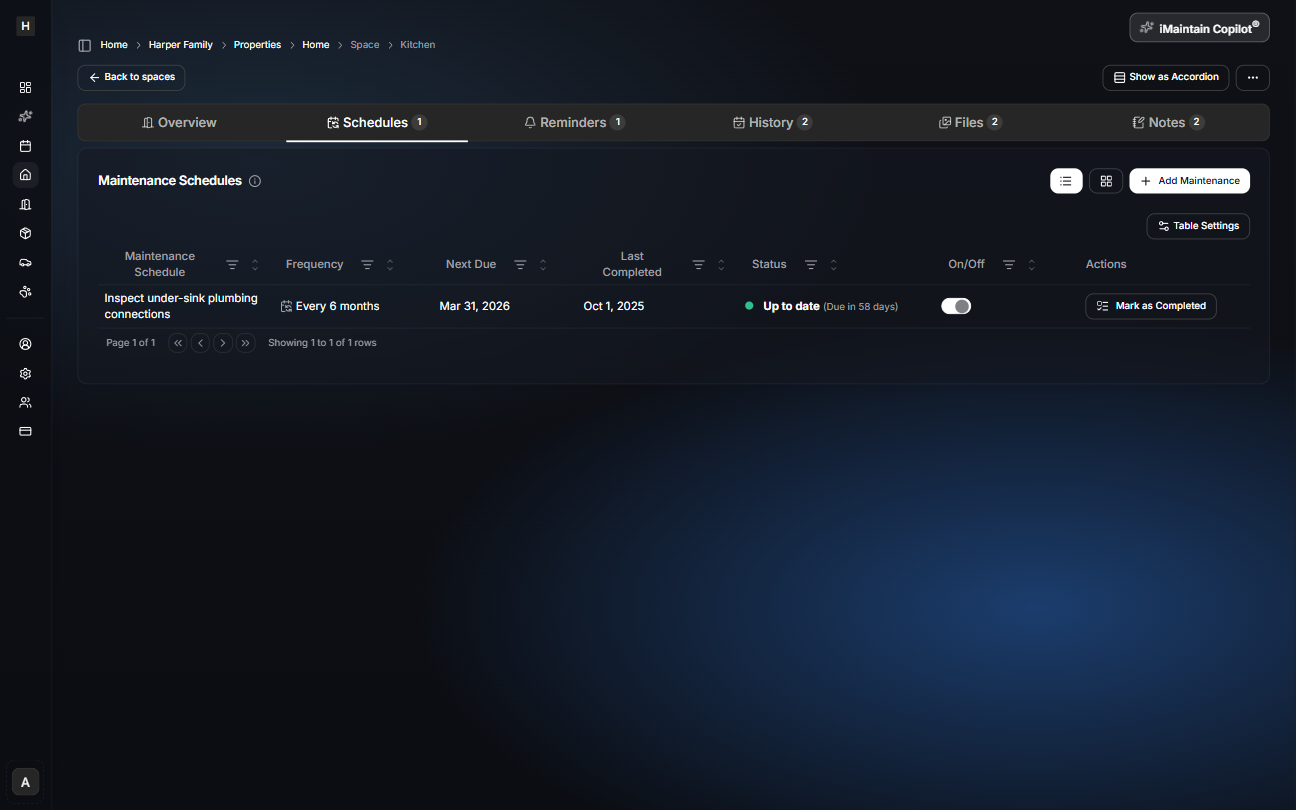
Add a maintenance schedule
Click Add Maintenance to create a space maintenance task. The flow is a simple 4-step wizard:
- Task
- Schedule
- Reminders
- Review
Nothing is saved until you confirm in the final step.
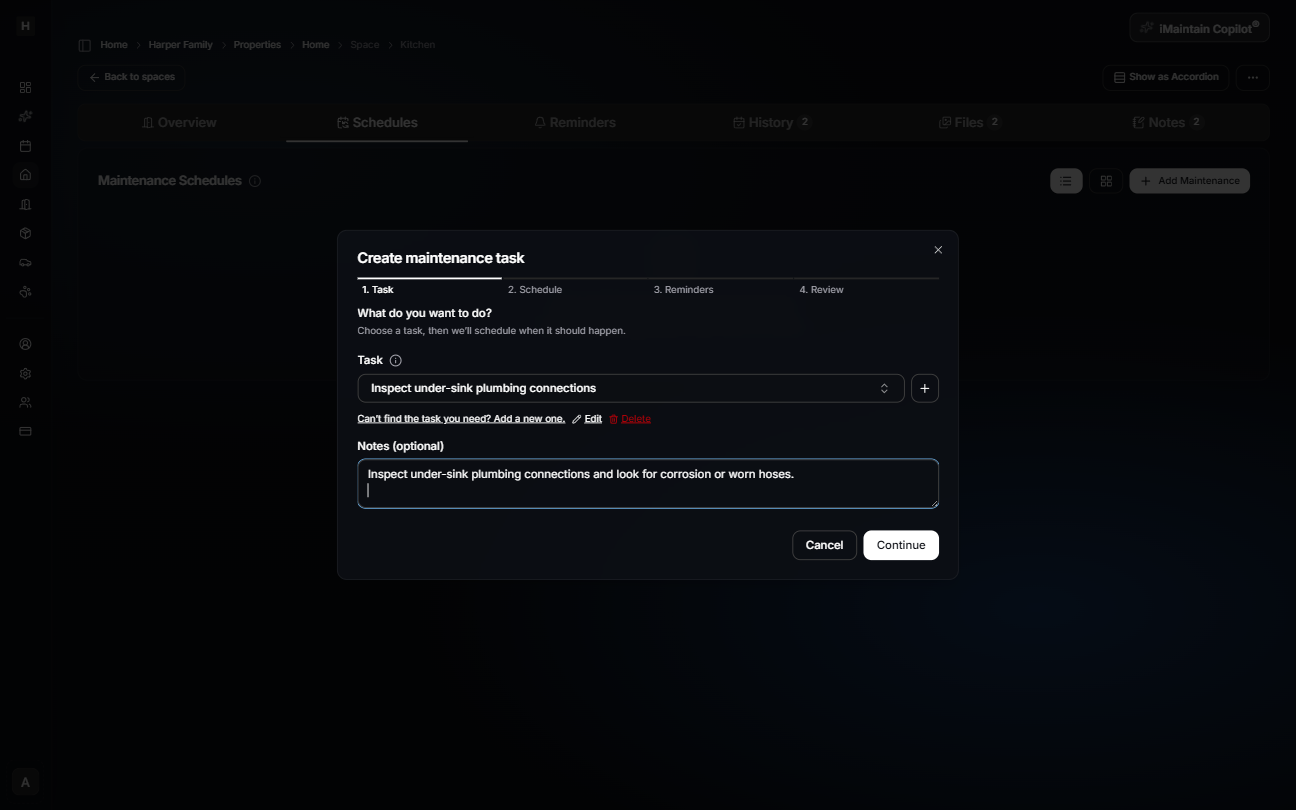
Step 1 — Task
Choose what you want to do and add optional notes or instructions. If you don’t see the right task, you can create one.
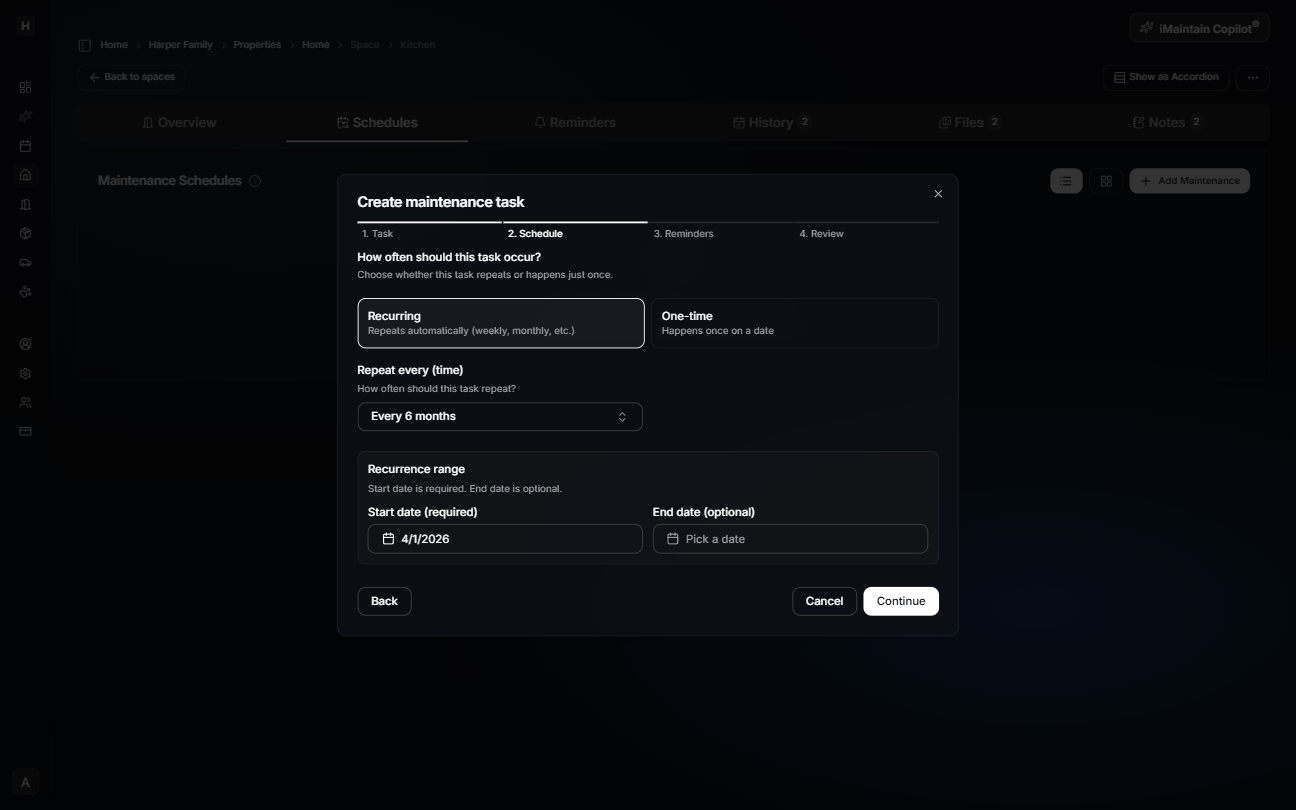
Step 2 — Schedule
Choose whether the task is recurring or one-time, then set the frequency and start date (and an optional end date).
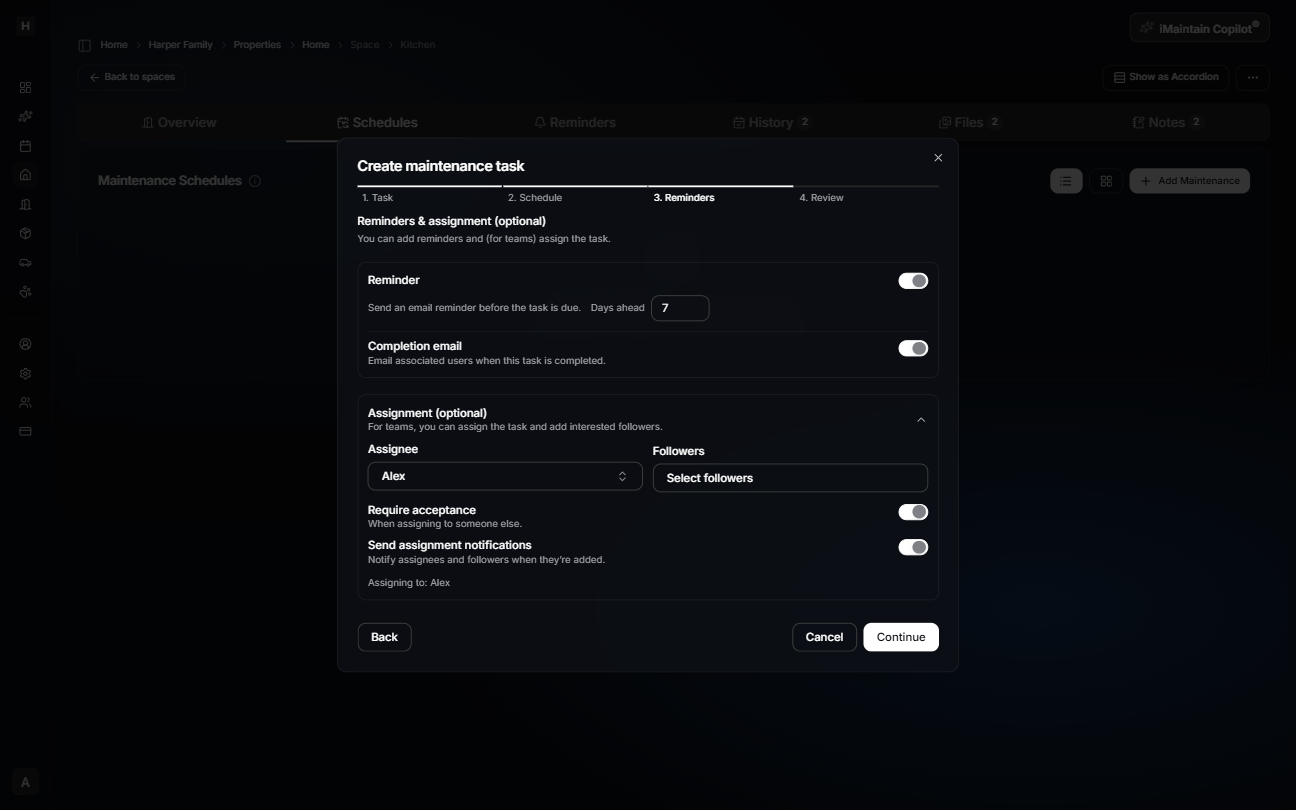
Step 3 — Reminders
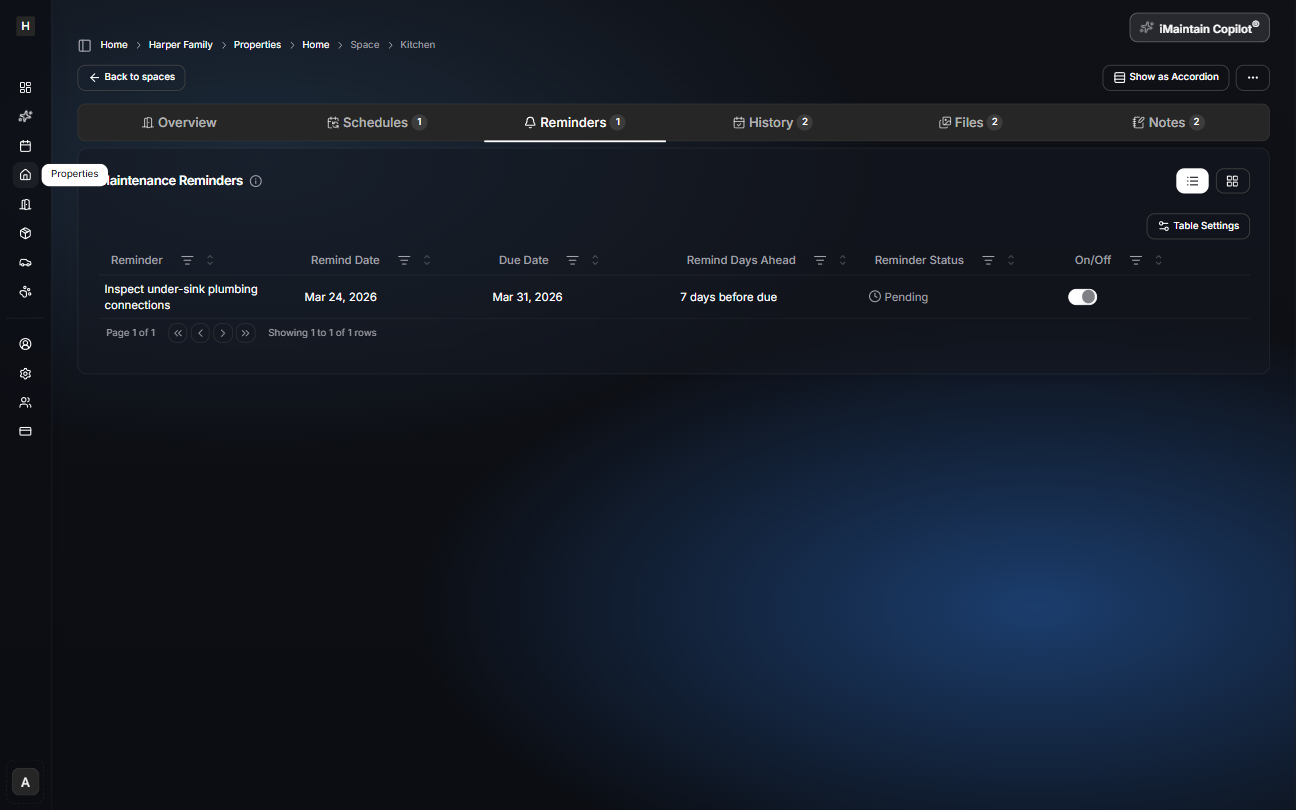
Add an email reminder (for example: 7 days before due) and optionally enable a completion email. If you use team accounts, you can also assign the task and add followers.
Step 4 — Review
Confirm the details and save.
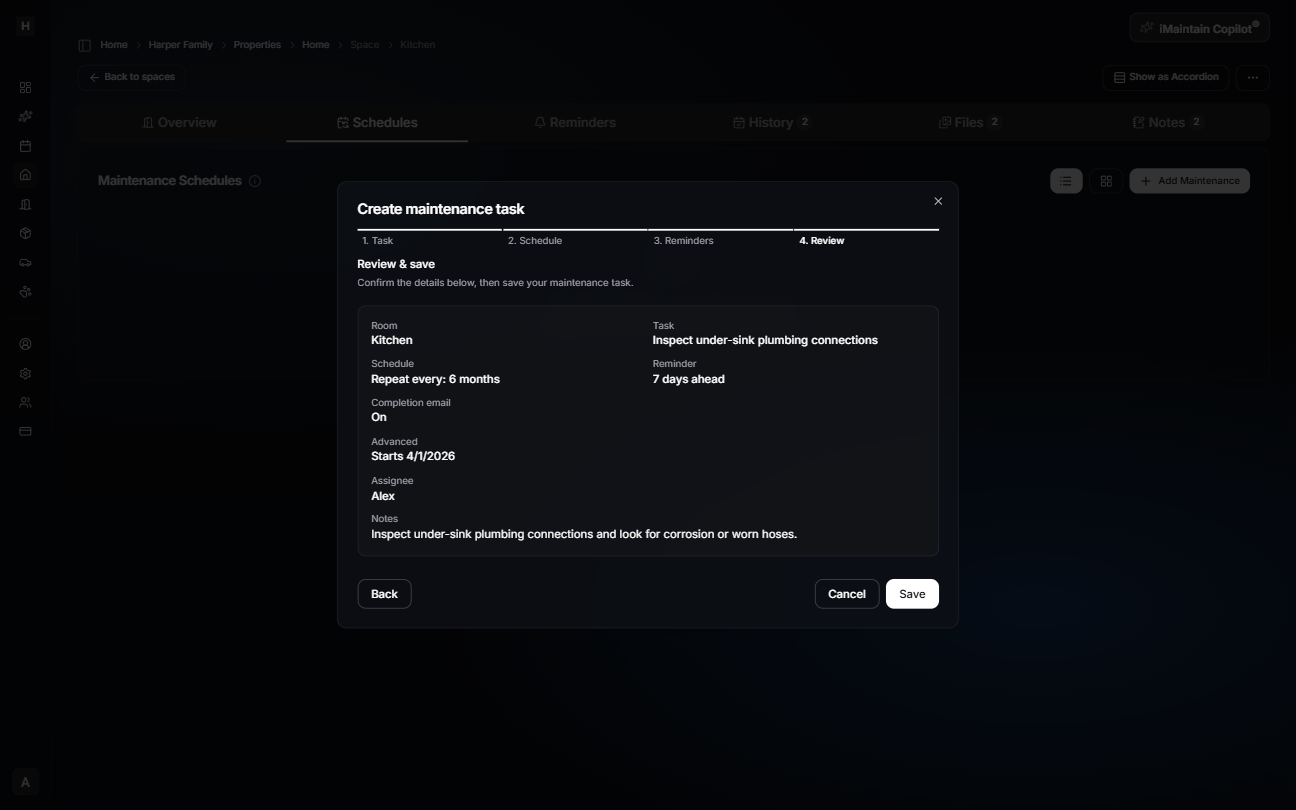
After saving, the schedule appears in the space’s Schedules list and syncs to Reminders and Calendar.
Reminders
Reminders help you remember what’s coming up without constantly checking your schedules.
History
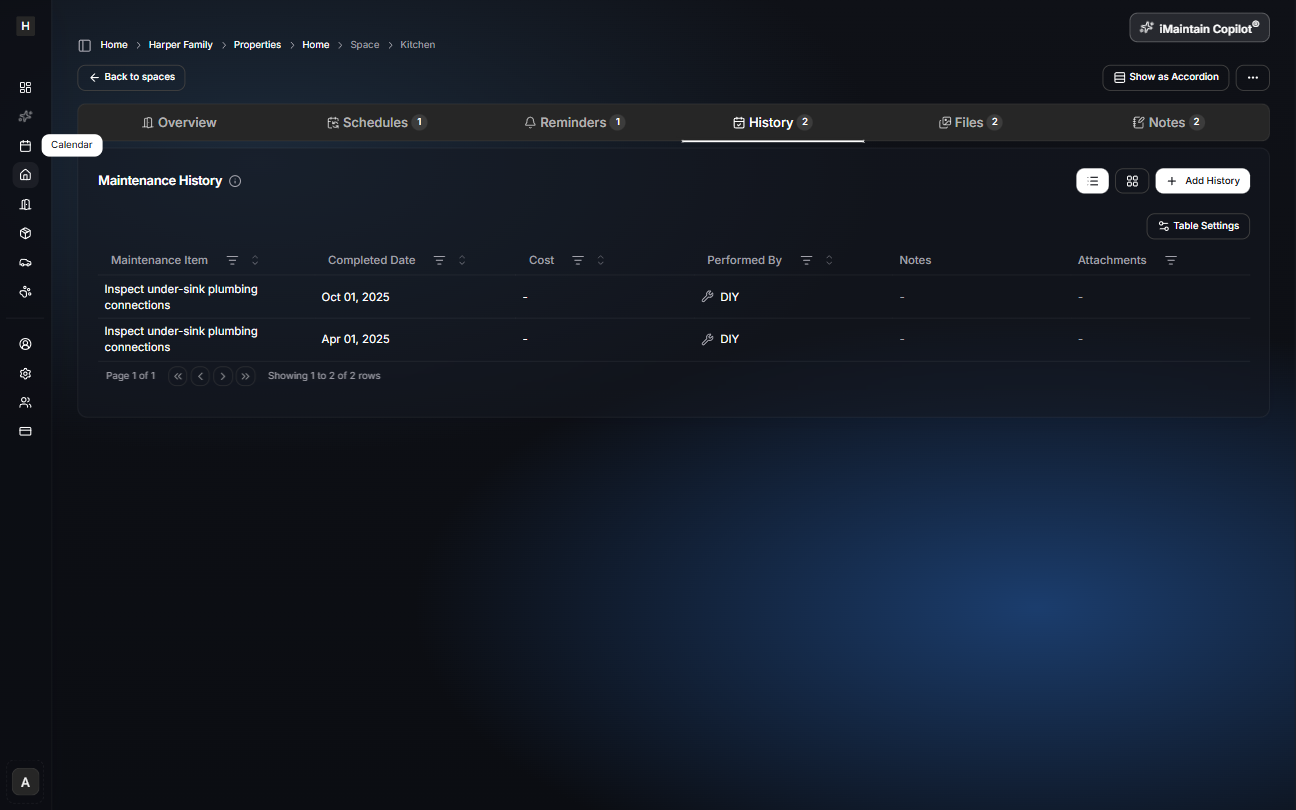
History is your record of what was completed—useful for troubleshooting, tracking patterns, and knowing what was done last (and when).
Everything rolls up to the calendar
Space schedules and reminders roll up into your calendar so you can view everything due in one place.