

Property maintenance
Set up, complete, and view maintenance history for your properties.
Overview
iMaintain makes it easy to schedule, track, and complete maintenance tasks for each property you manage. Schedules and reminders keep work from slipping, and history gives you a record you can rely on later (including costs, notes, and attachments).
When you attach photos or receipts, iMaintain uses AI-driven analysis to extract important details—like dates, vendors, costs, and service descriptions. These insights help complete forms faster, improve documentation, and enhance the iMaintain Copilot's guidance over time.
1. Open your property
Navigate to the Properties section in the left sidebar.
Select the property you'd like to manage.
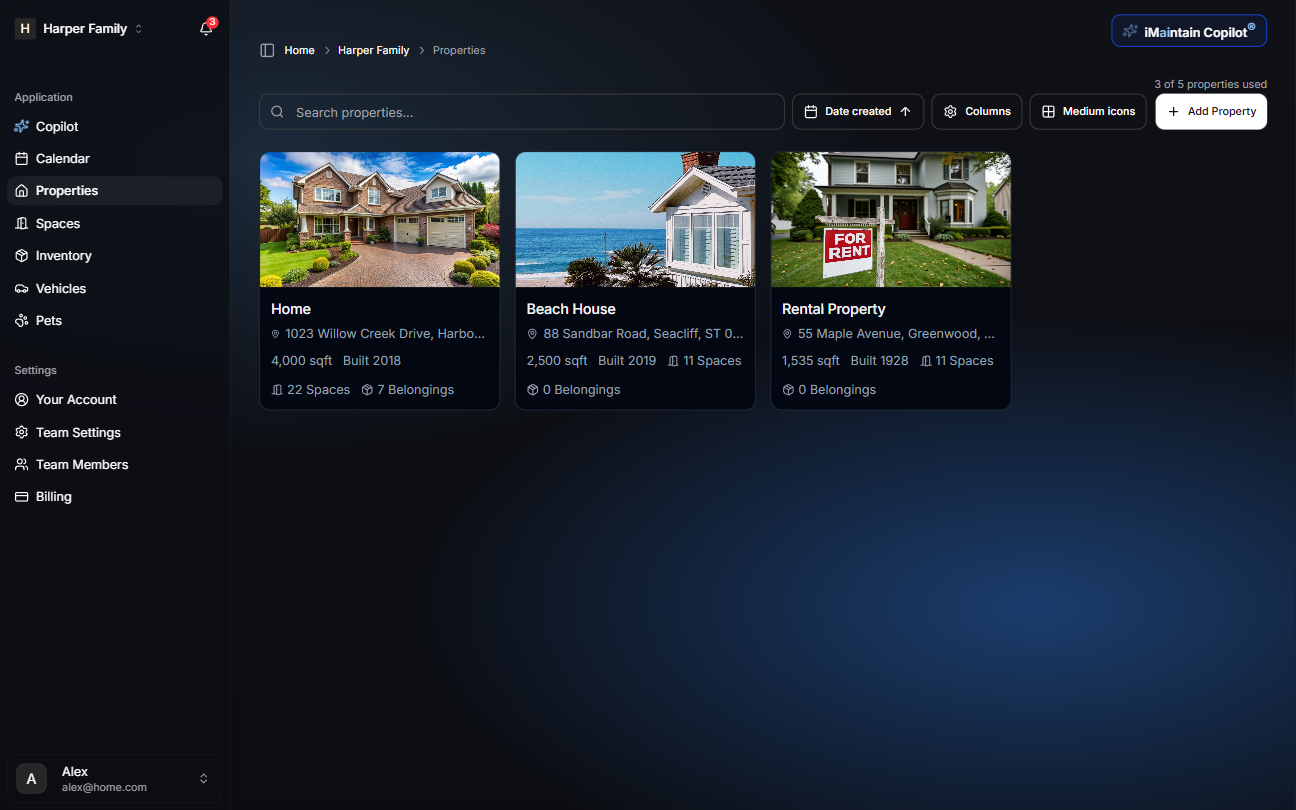
After selecting a property, you'll arrive at its Overview page, which gives you a snapshot of property details, value, and activity.
2. View existing maintenance schedules
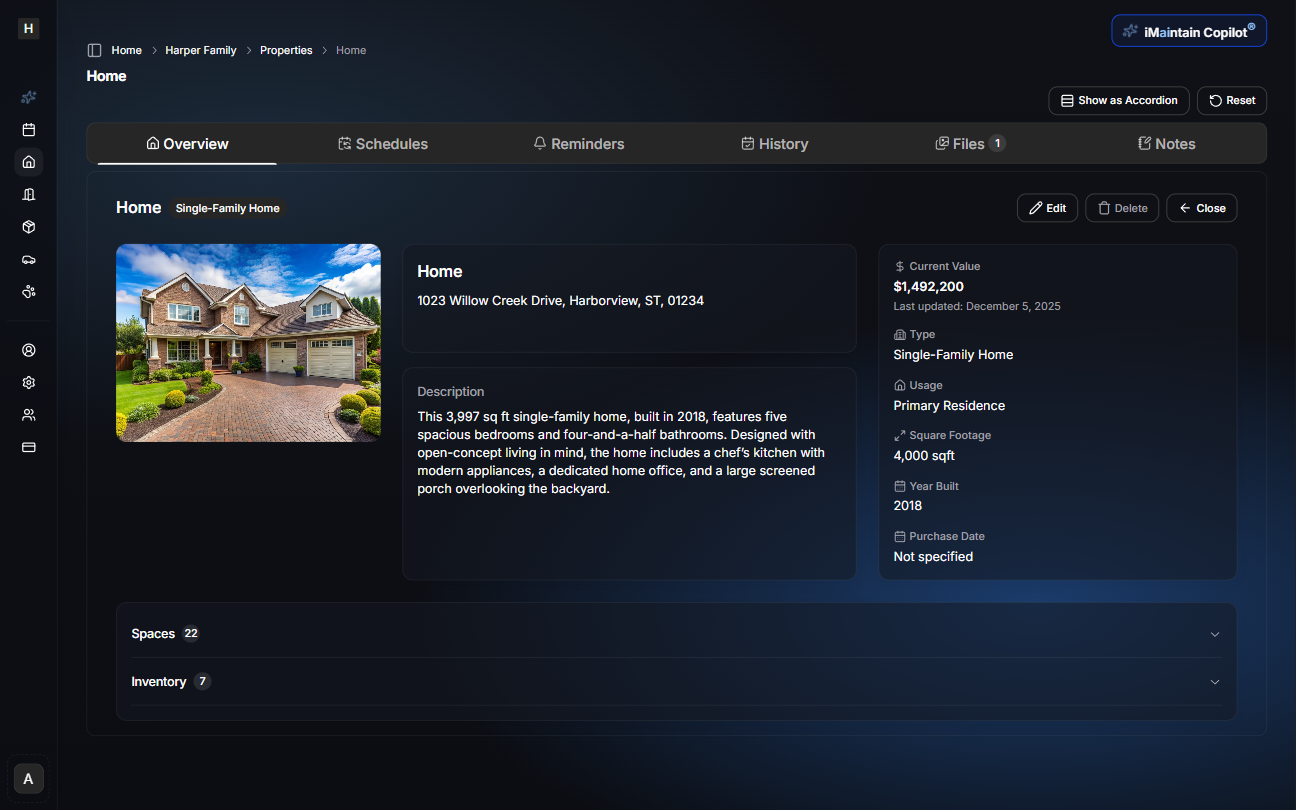
Open the Schedules tab to see all maintenance items associated with that property.
If none have been created yet, you'll see an empty state.
3. Add a new maintenance schedule
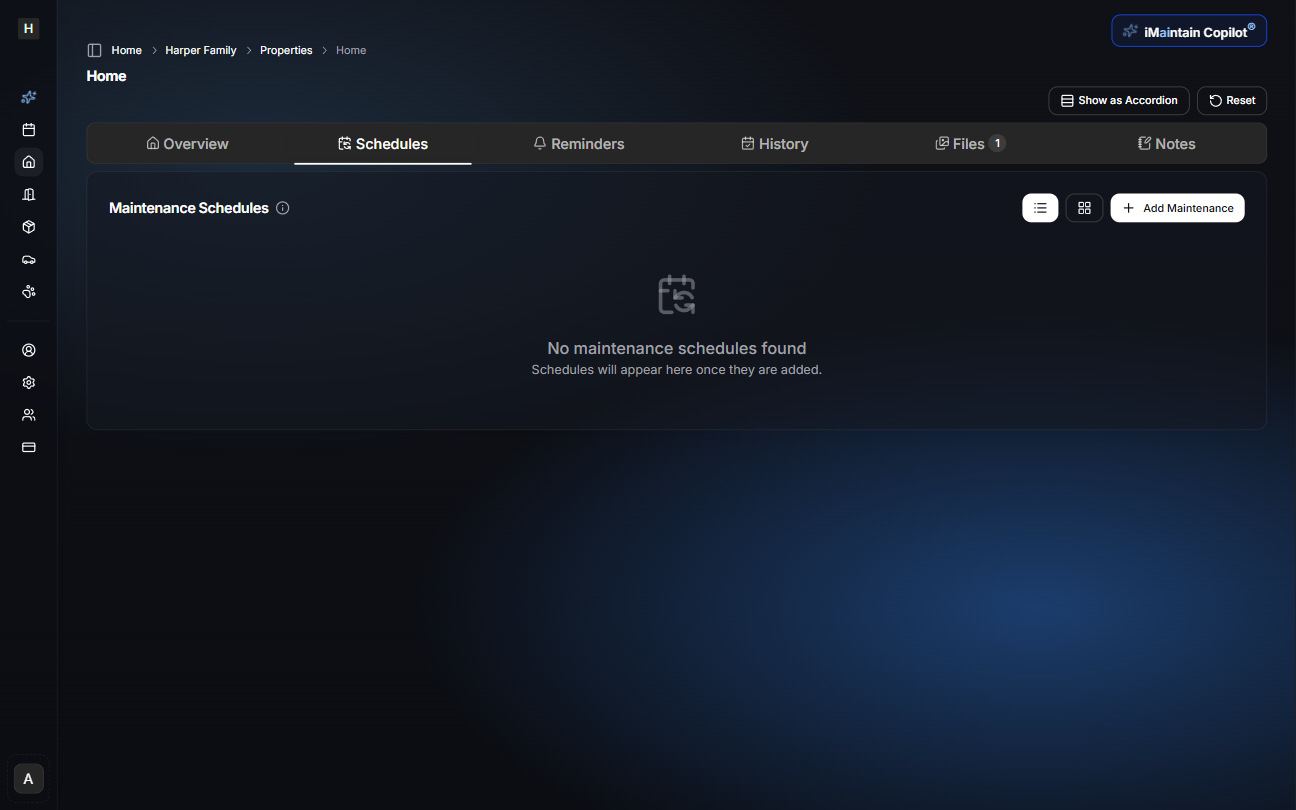
Click Add Maintenance to create a maintenance task for the property. The flow is a simple 4-step wizard:
- Task
- Schedule
- Reminders
- Review
Nothing is saved until you confirm in the final step.
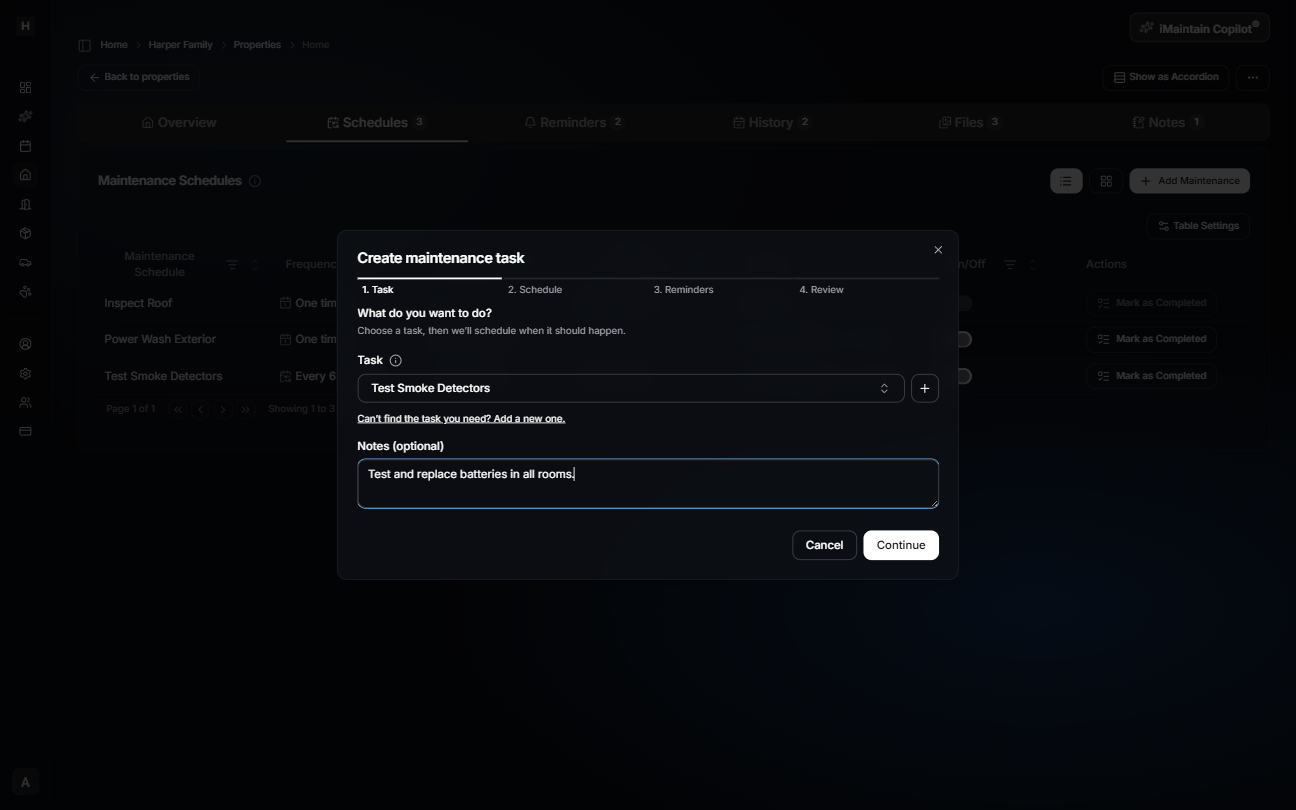
Step 1 — Task
Choose what you want to do (for example: “Test Smoke Detectors”), set the task priority, and add optional notes or instructions. If you don’t see the right task, use the + button to create a new one.
You can choose the priority when setting up a new task. Automatically generated tasks start with a suggested priority, and you can change it before or after saving.
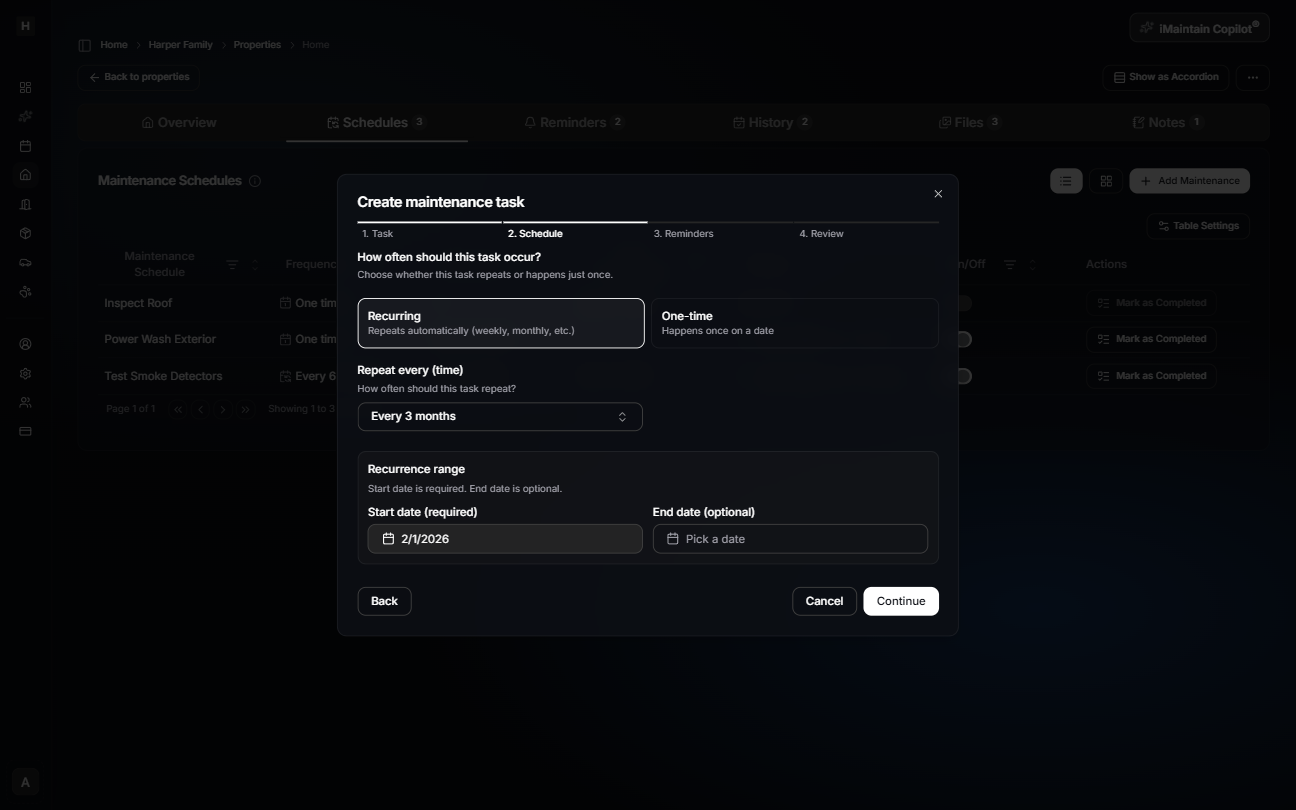
Step 2 — Schedule
Choose whether the task is Recurring or One-time.
- Recurring repeats automatically (monthly, quarterly, yearly, etc.)
- One-time happens once on a specific date
Set the start date (required) and an optional end date to limit the recurrence range.
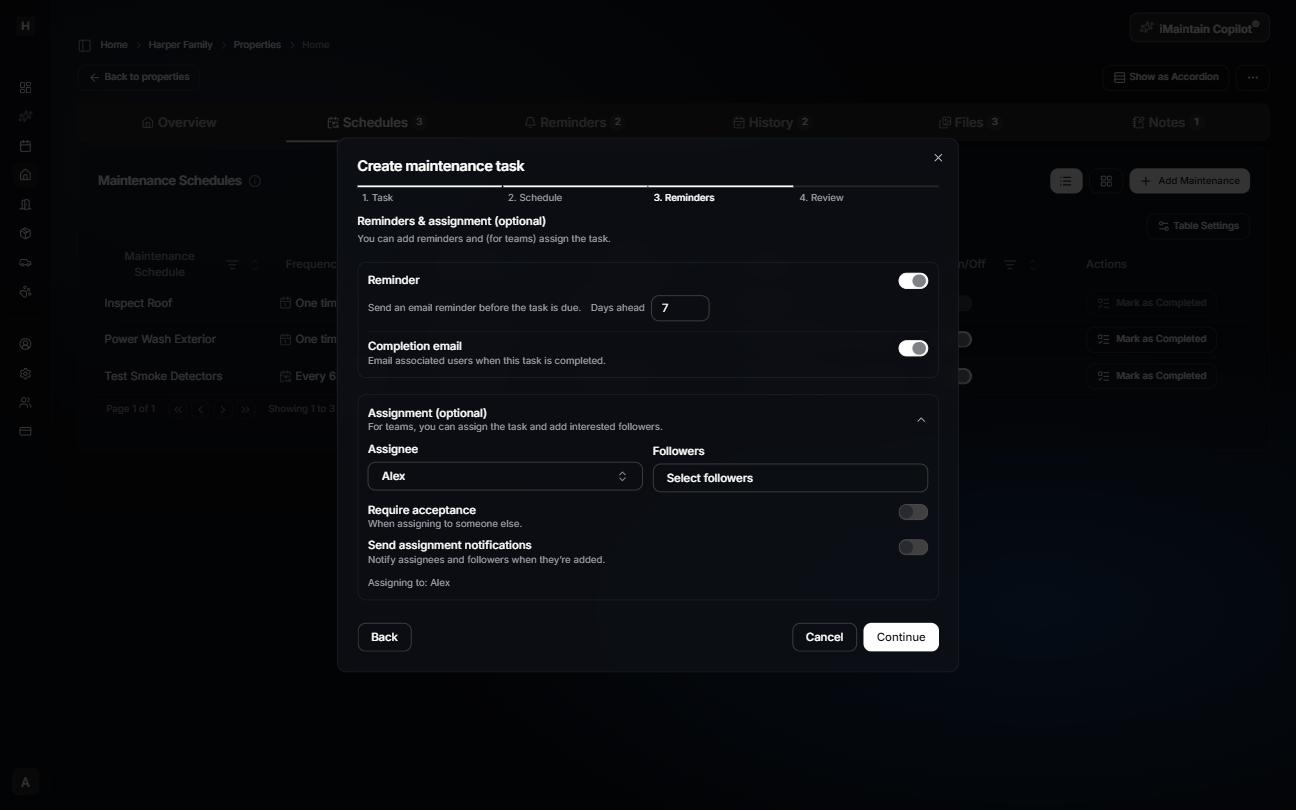
Step 3 — Reminders (and assignment)
Optionally configure:
- Reminder (including how many days ahead)
- Completion email
- Assignment (assignee and followers, when available)
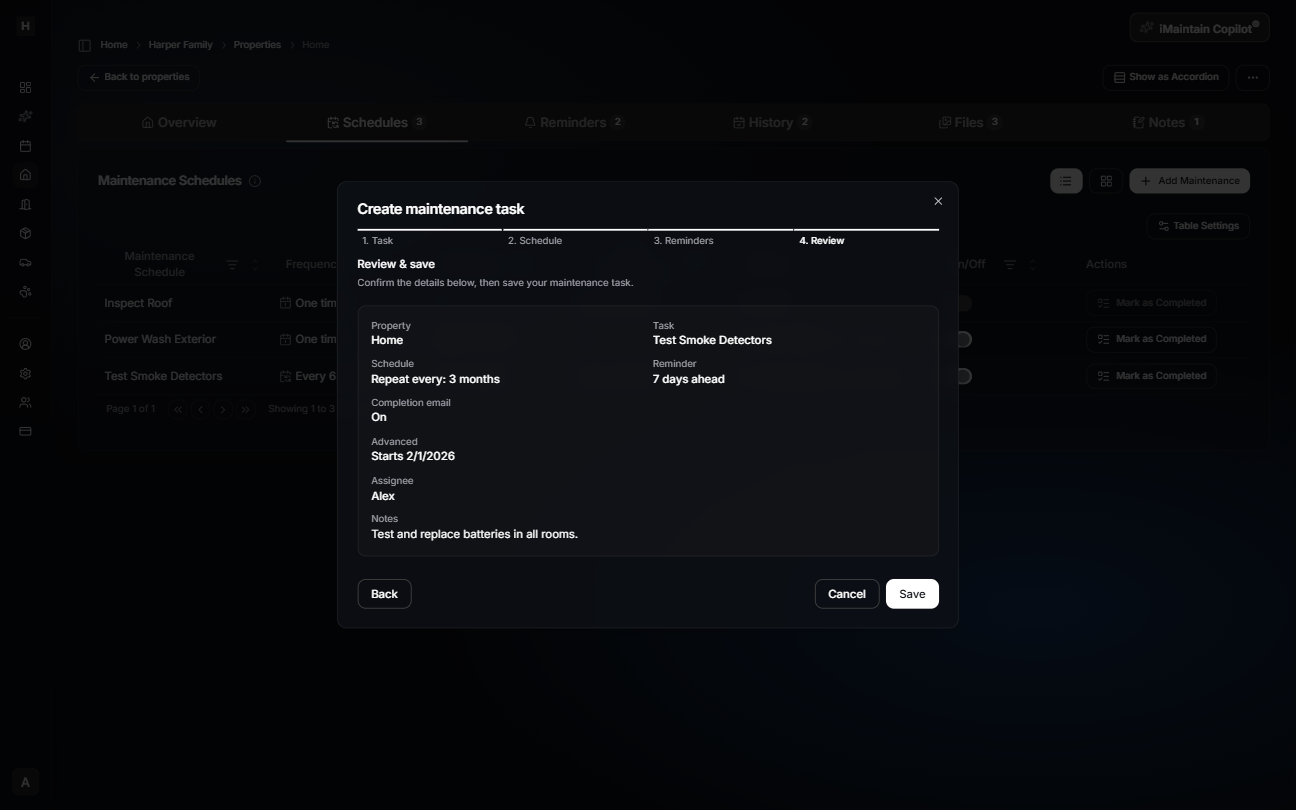
Step 4 — Review & save
Review what you’re about to create (task, priority, schedule, reminders, notes), then click Save.
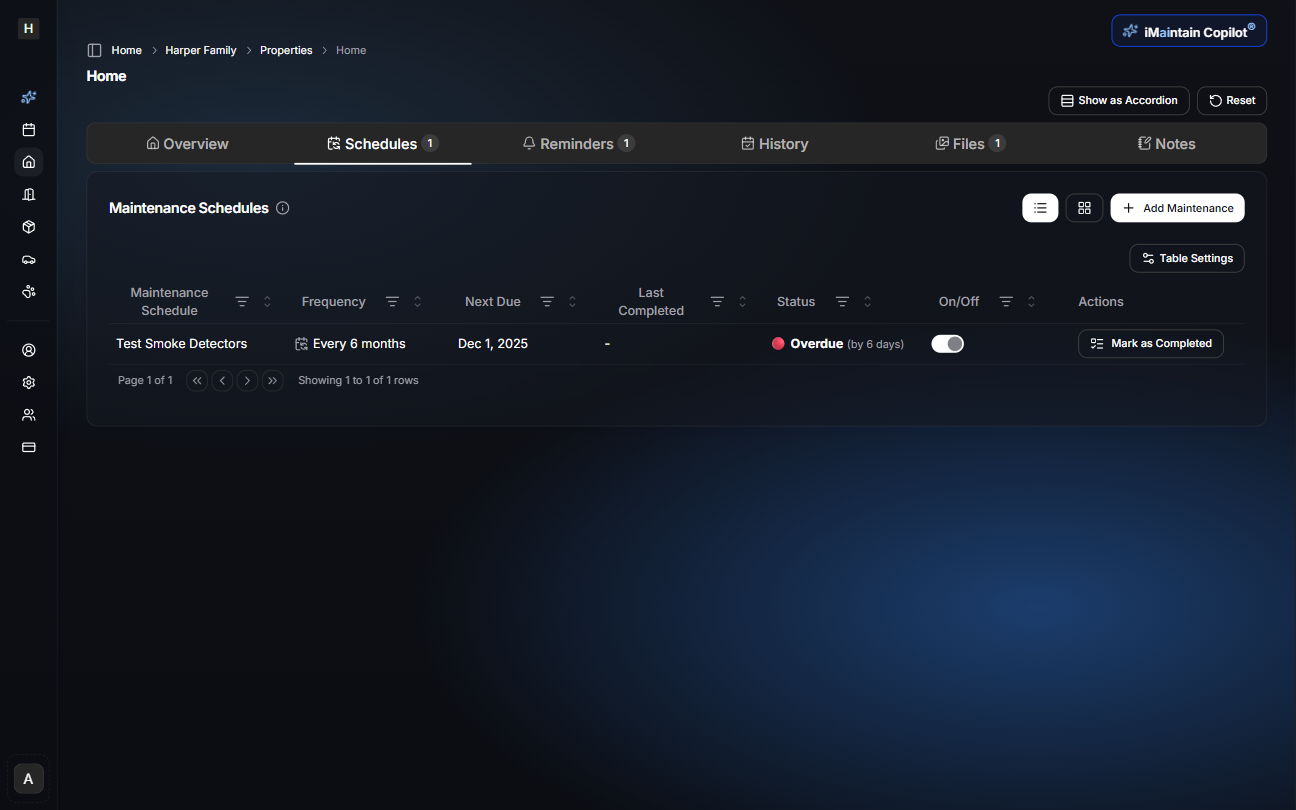
After saving, the schedule appears in the property’s Schedules list with its priority and syncs to Reminders, Calendar, and Copilot context.
4. Completing a maintenance task
When a scheduled task is due, click Mark as Completed to open the completion wizard.
The wizard walks you through a three-step flow to document what was done, who completed it, and any supporting receipts or images.
Step 1 — Attachments
Upload any supporting files:
- Photos
- Receipts
- Invoices
- Work records
You can upload from your computer or take photos directly on your mobile device.
iMaintain will automatically use AI vision analysis to extract details like:
- Cost
- Service provider
- Dates
- Line items
- Notes or descriptions
This can pre-fill fields and enrich your maintenance history.
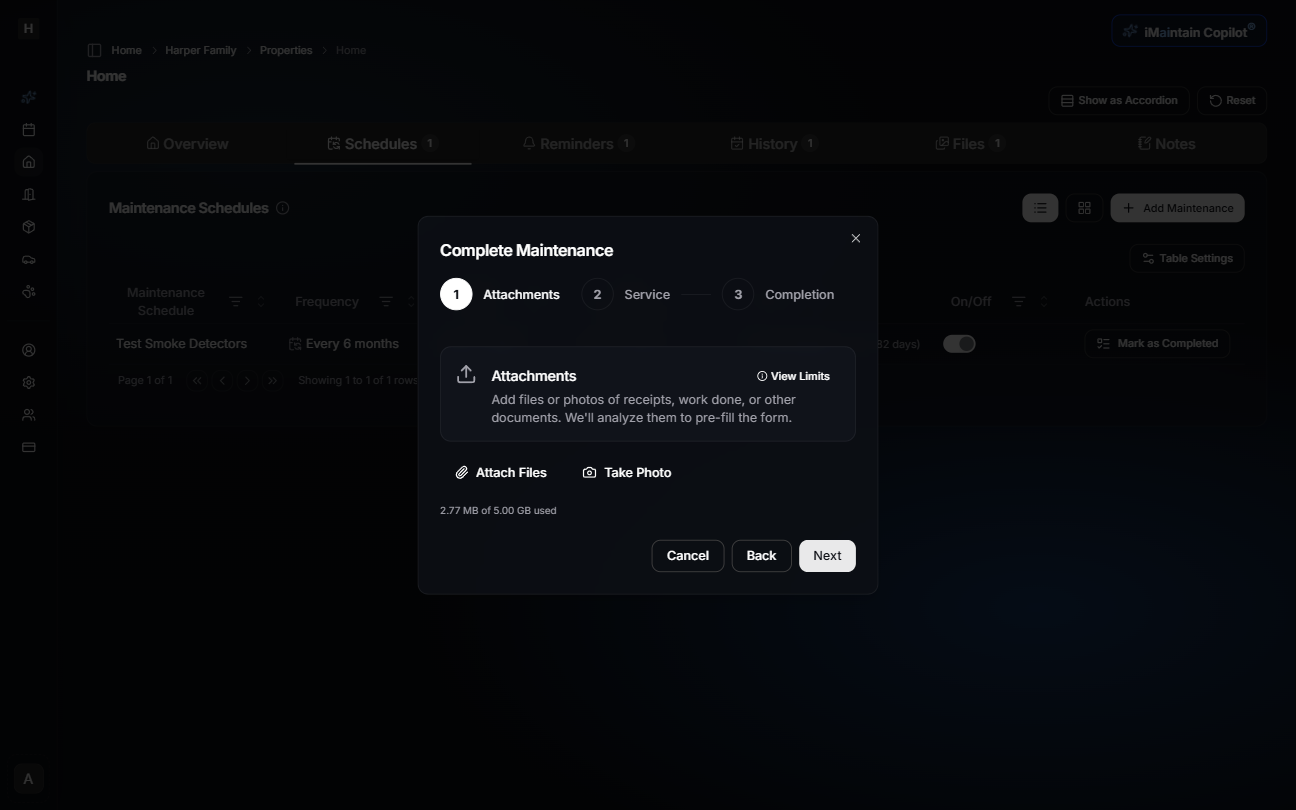
If you continue without attachments, you'll see a reminder:

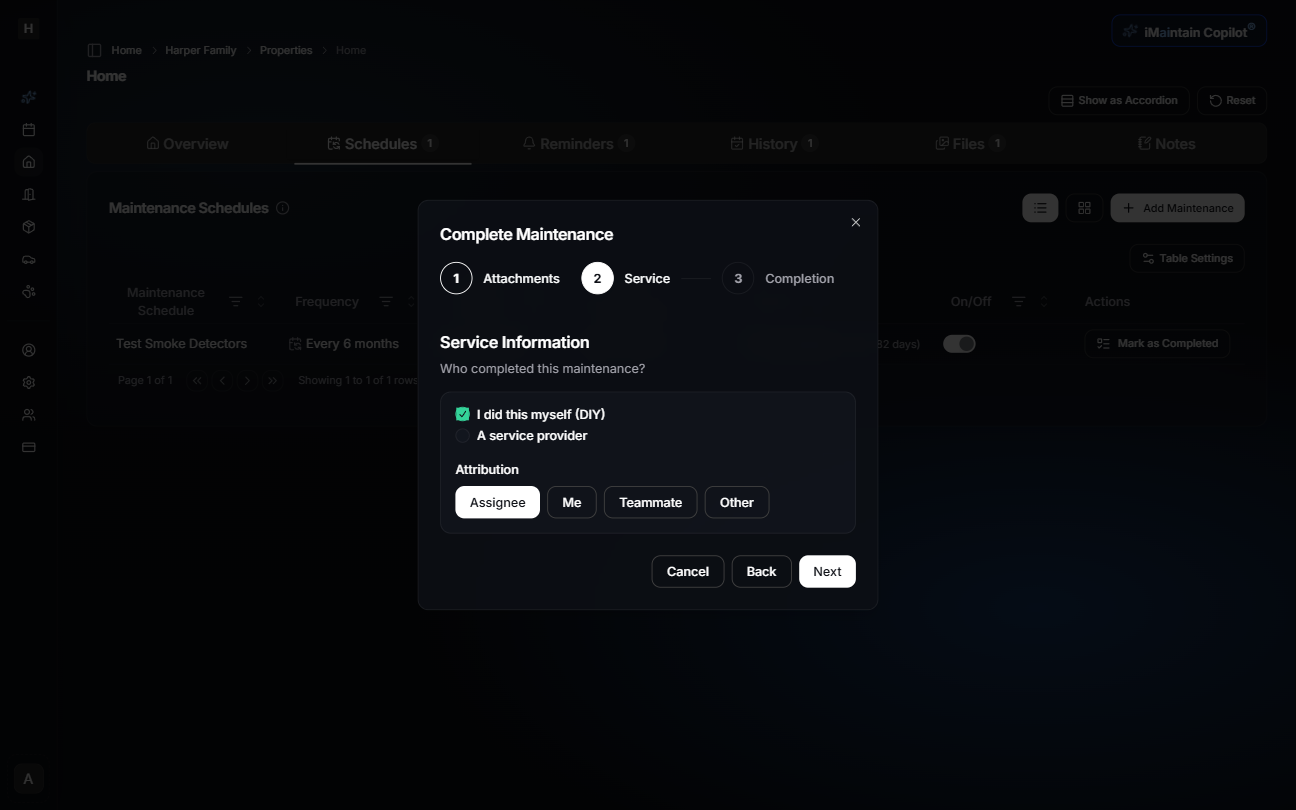
Step 2 — Service Information
Indicate who performed the maintenance:
- DIY (You completed the task)
- A service provider
Then choose attribution:
- Assignee
- Yourself
- Teammate
- Other
Step 3 — Completion Details
Enter or confirm:
- Date of maintenance
- Total cost
- Notes
Any AI-extracted details from your attachments will appear here.
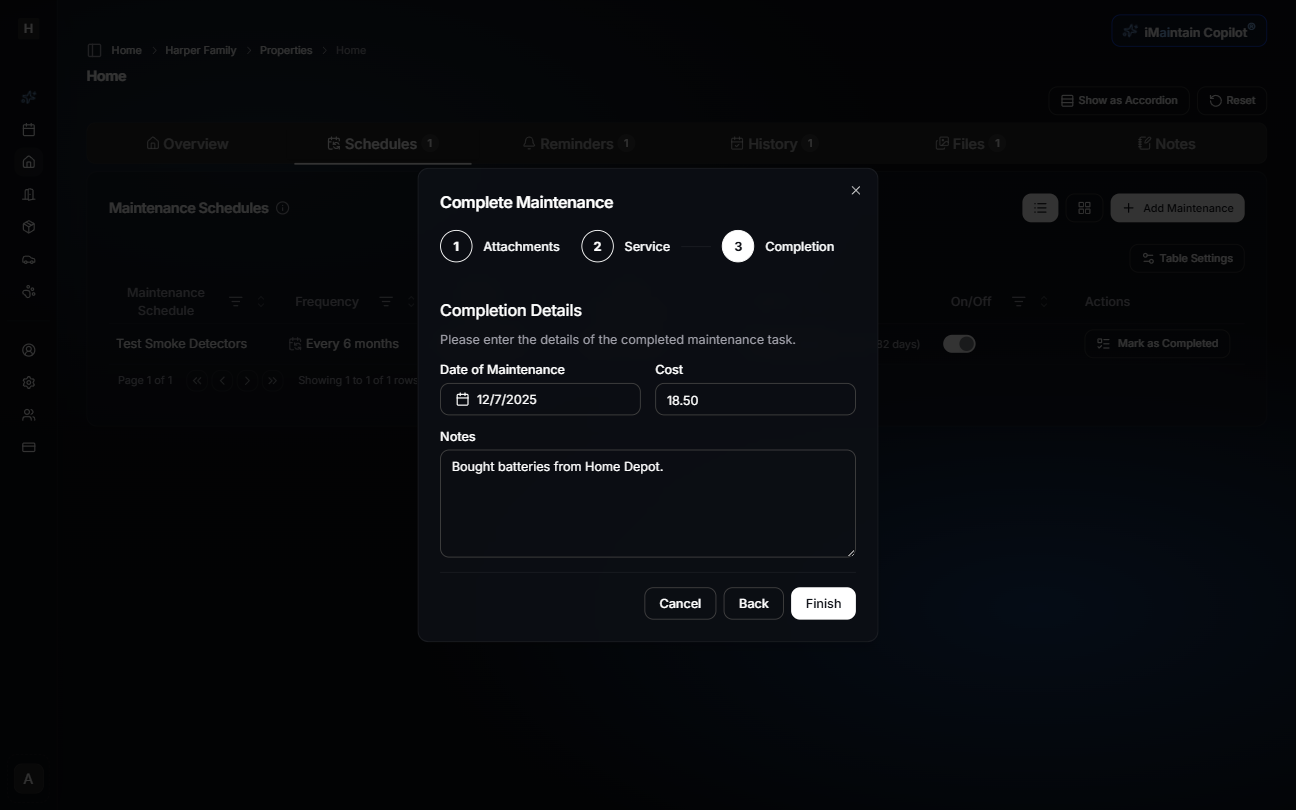
Click Finish to complete the task.
For scheduled work, the completed record keeps the task priority from the time the work was finished. If you change the schedule priority later, past history entries keep their original priority.
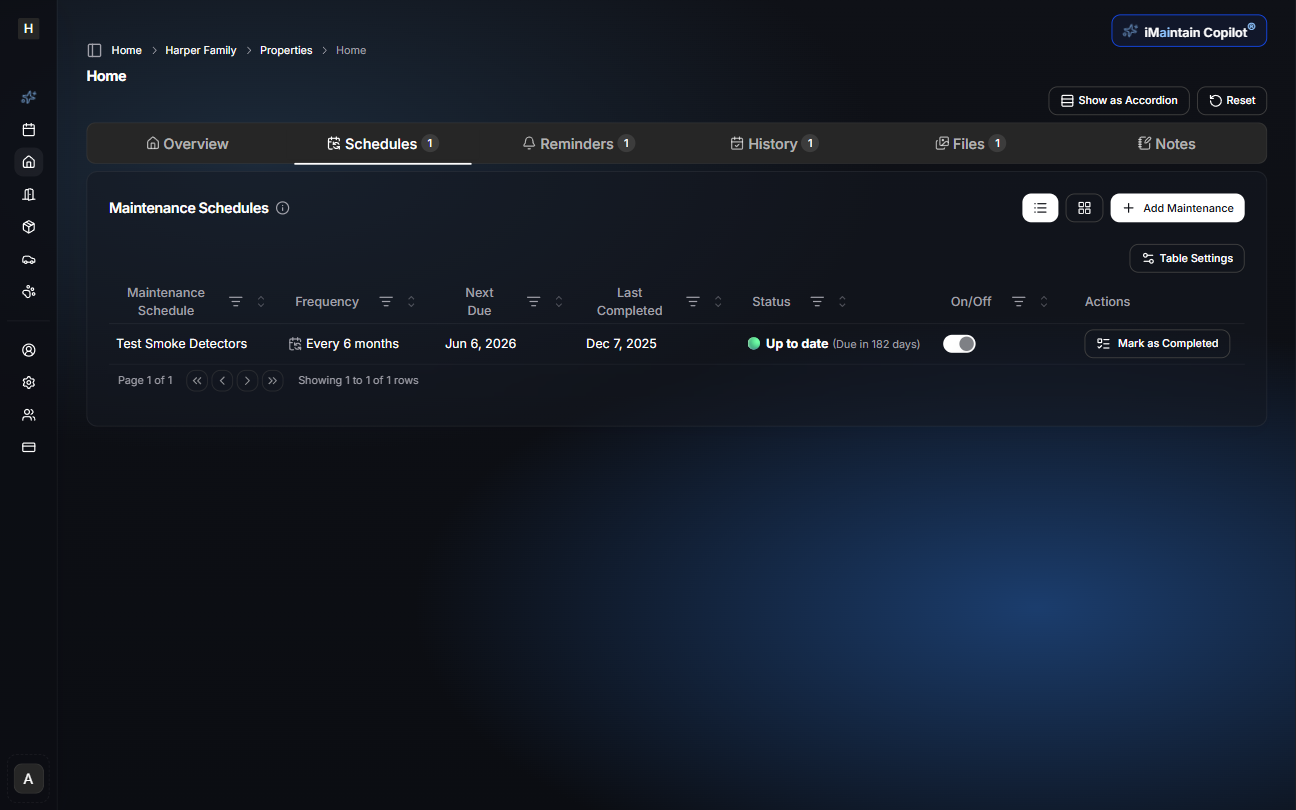
5. Updated maintenance schedule view
Once completed, the maintenance schedule will update automatically.
You'll now see:
- Saved priority
- New Next Due date
- The Last Completed date
- Updated Status (e.g., Up to Date)
- Future reminders recalculated
6. Maintenance reminders
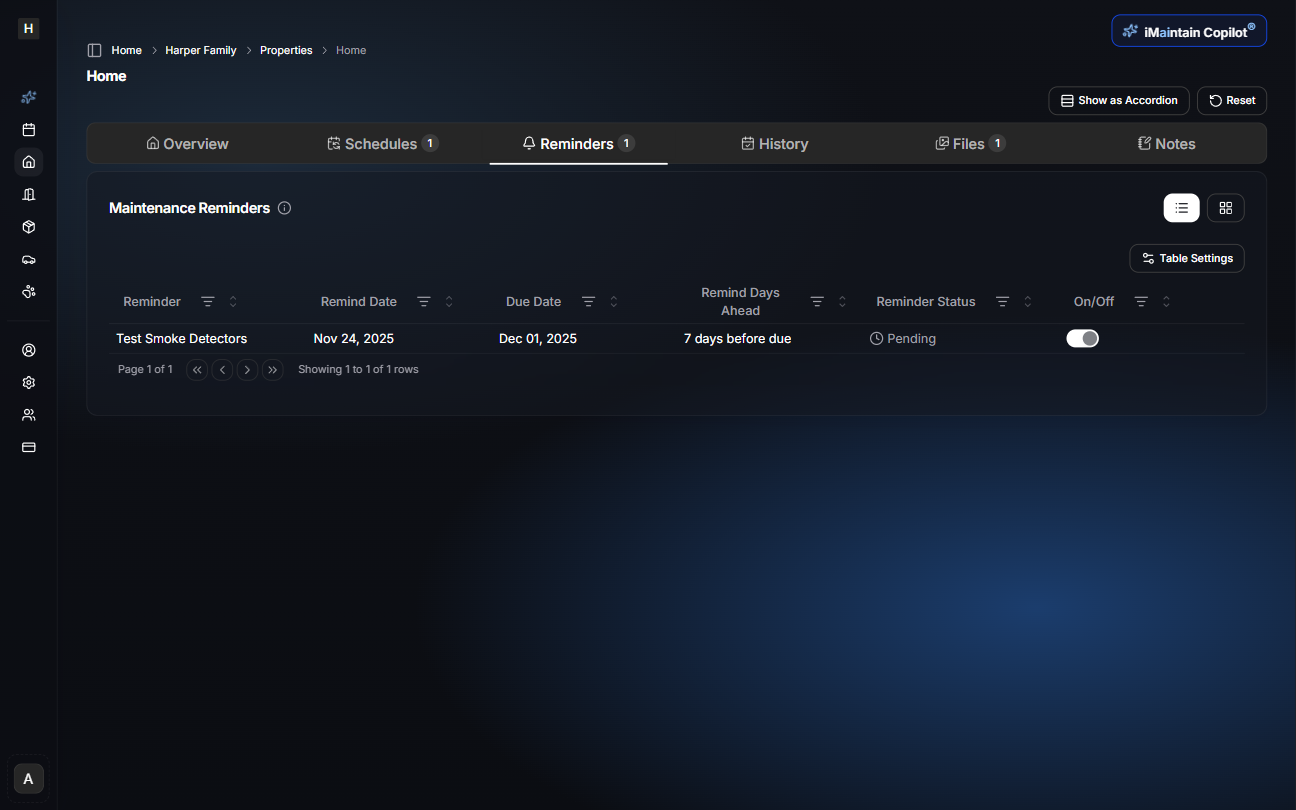
The Reminders tab shows all upcoming maintenance reminders for the property.
Reminders are generated based on:
- Your frequency settings
- Due dates
- Days-ahead reminder settings
The iMaintain Copilot monitors:
- Overdue tasks
- Upcoming schedules
- Completed tasks
- Notes, costs, and extracted details
This allows the Copilot to provide proactive guidance and context-aware suggestions.
7. Maintenance history
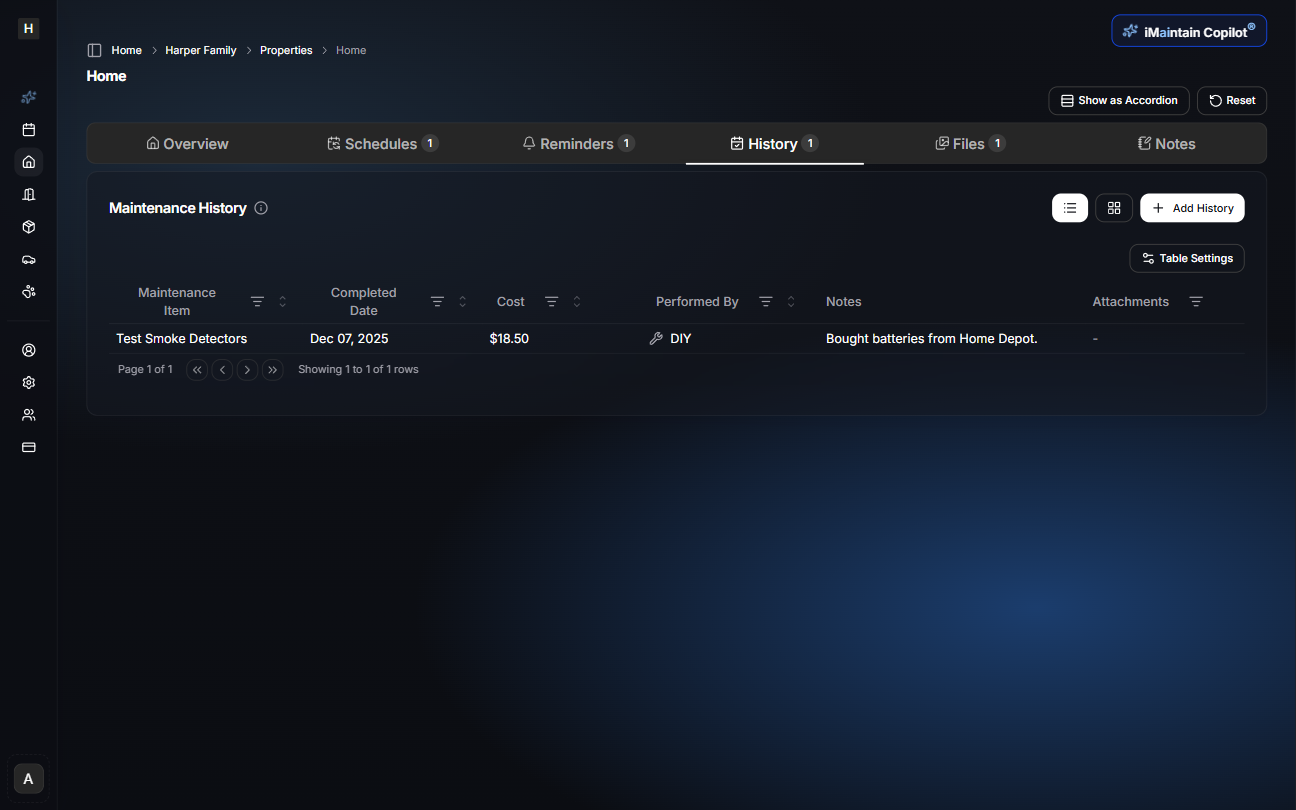
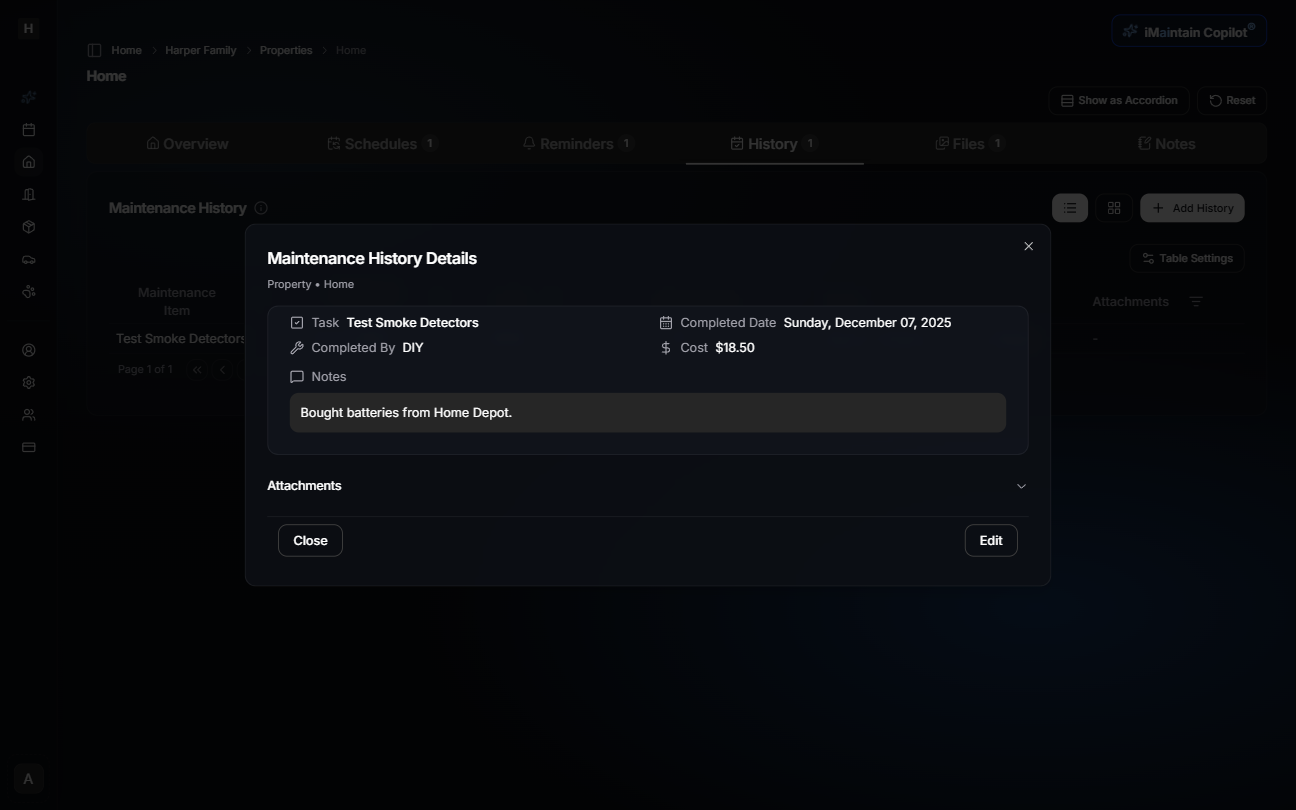
The History tab tracks every completed maintenance action.
You'll see:
- Past completion dates
- Priority at completion time, when the work came from a scheduled task
- Costs
- Service information
- Notes
- Attachments (photos, receipts, invoices)
And iMaintain stores all AI-extracted insights alongside the entries.
This gives you a clean timeline of your property's care.
8. Everything syncs to the calendar and Copilot
Your maintenance schedules and completed tasks automatically appear in the iMaintain Calendar, giving you a full-property overview across all assets—properties, vehicles, pets, and belongings.
The Copilot is aware of:
- All schedules
- Reminders
- Overdue tasks
- Attachments and receipts
- Completion history
This enables personalized help, seasonal recommendations, and context-aware troubleshooting.
A complete, AI-powered maintenance system
iMaintain centralizes all your property upkeep with:
- Smart scheduling
- Clean history logs
- AI-enhanced receipt and photo analysis
- Shared team assignments
- Calendar integration
- Copilot-powered insights
This ensures nothing is overlooked—and your property stays protected, organized, and easier to manage.
Related
- Adding properties - Set up your property
- Property files - Organize maintenance documents
- iMaintain Calendar - View maintenance in your calendar
- Copilot for properties - Get AI-powered maintenance recommendations