

Property files
Upload and organize documents, receipts, and media for your properties.
Overview
Files are what make a property useful long after you add it. Store inspection reports, invoices, receipts, warranties, and photos with the property so you can find documentation quickly when you need it.
All uploaded files can be analyzed by iMaintain’s AI and become searchable through iMaintain Copilot.
Accessing Property Files
To view or upload files for a property:
- Open the property you want to manage.
- Select the Files tab from the property navigation bar.
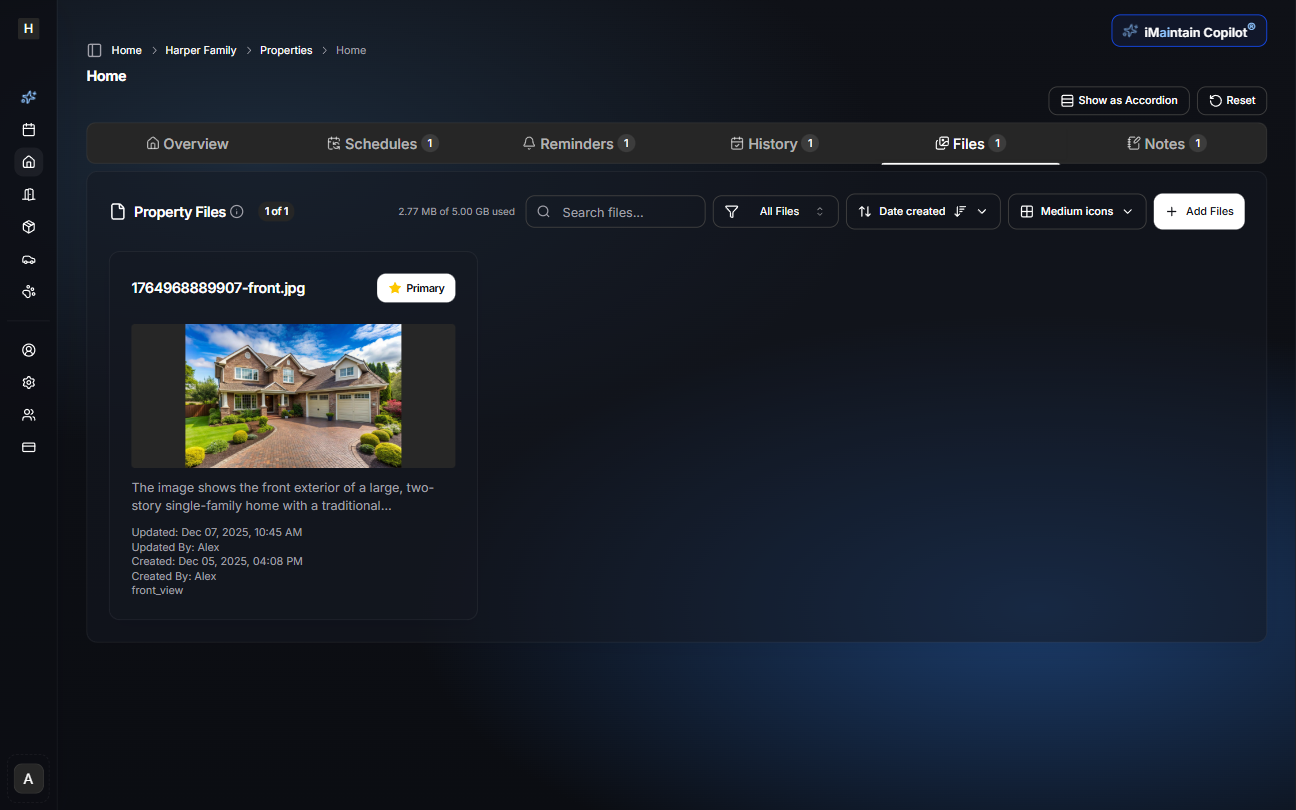
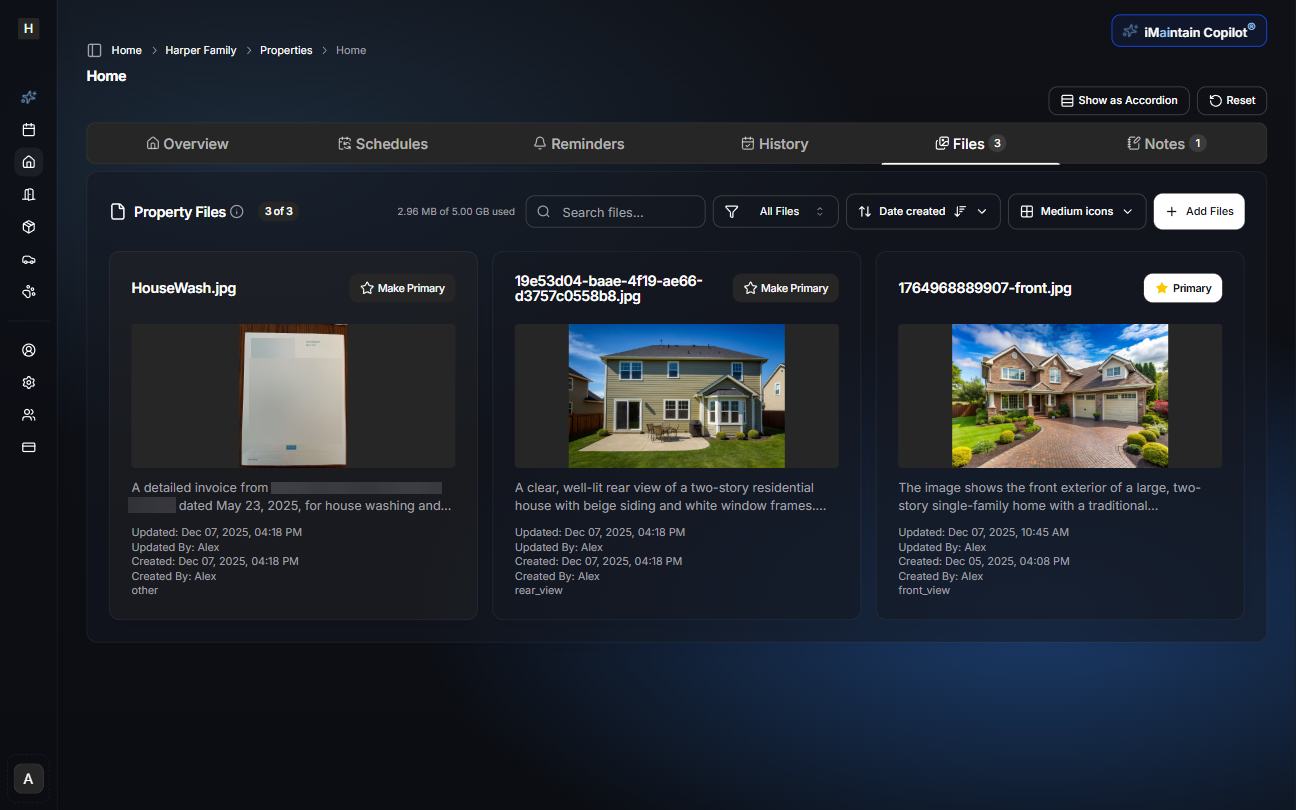
The Property Files panel displays all existing files for the selected property, including metadata such as uploaded date, description, category, and file size.
Adding Files
To upload new documents or images:
- Click the Add Files button.
- This will open the Add Files stepper, which guides you through attaching and uploading files.
Step 1: Attach Files
You can attach files from your device or take a photo directly. Supported file types include images (JPG, PNG, HEIC) and PDFs.
Uploaded files will appear in the preview list before analysis.
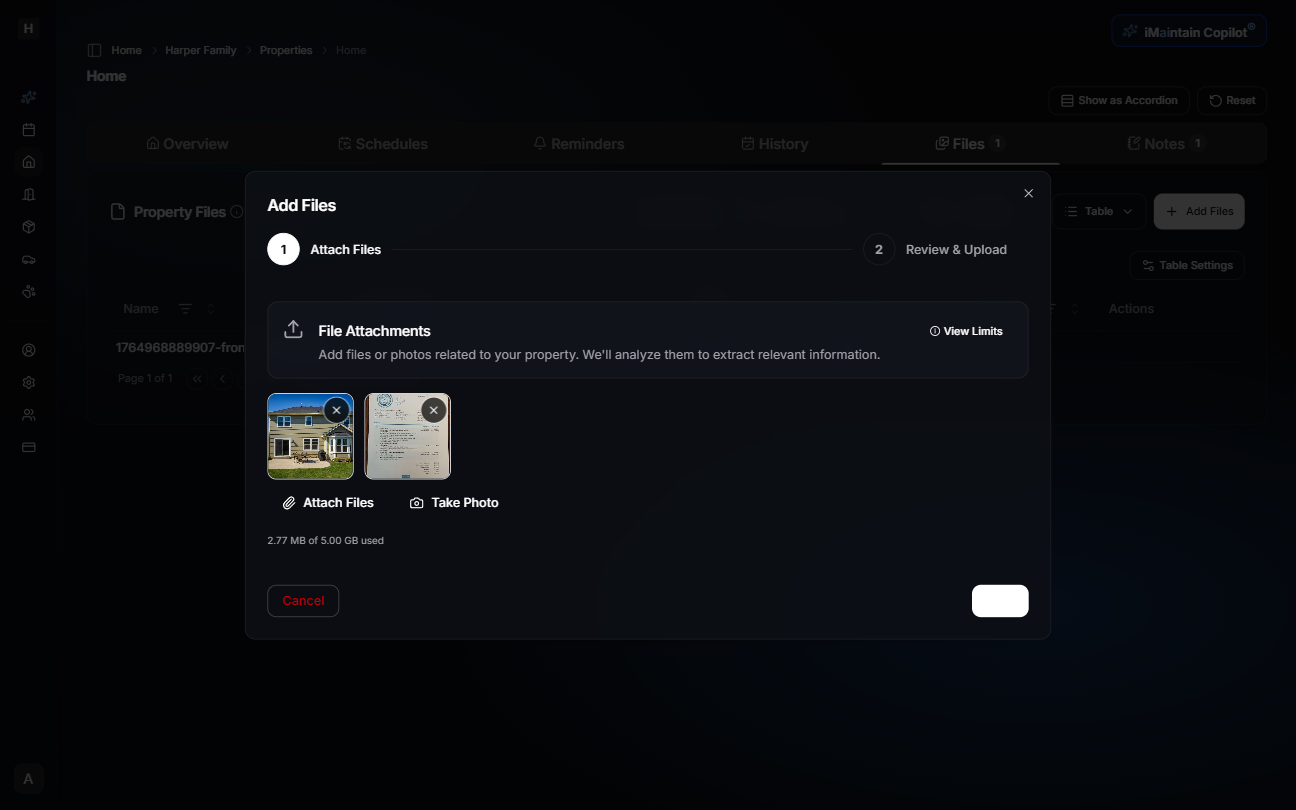
After selecting files, click Next to continue.
AI Analysis
Once files are attached, iMaintain automatically analyzes them to extract useful information such as descriptions, visible details, and document contents.
An analysis window appears while processing is in progress.

Step 2: Review & Upload
After processing completes, the extracted information is displayed with each file. You can review the automatically generated descriptions before final upload.
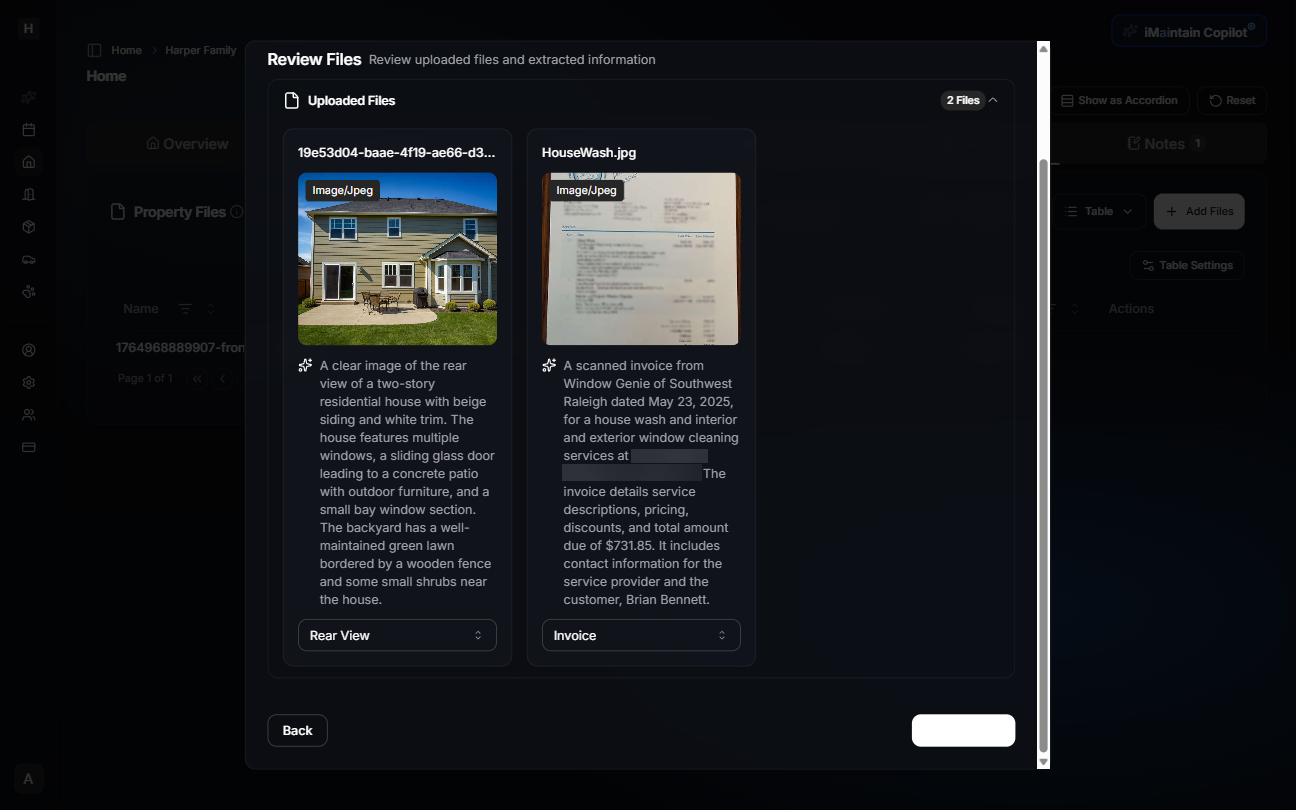
Click Upload to save the files to your property.
Viewing Files
Once uploaded, files can be viewed in two display modes:
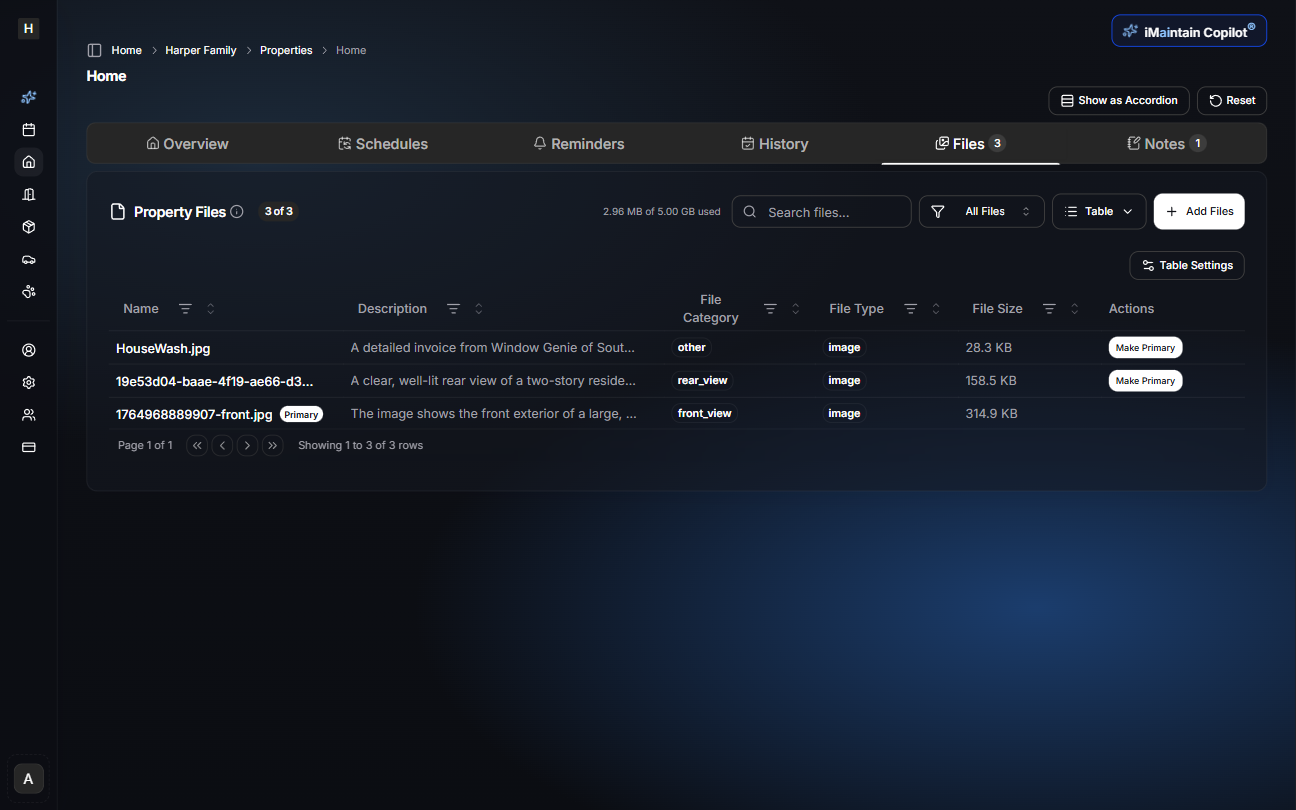
Table View
The table view displays files in a grid with sortable columns for:
- Name
- Description
- File Category
- File Type
- File Size
- Actions (including making a file the primary image)
This view is ideal for users who prefer structured file management.
Card View
Card view displays each file visually in a thumbnail-style layout, making it easier to browse photos or documents. Each card includes:
- The file preview
- File name
- Description
- Created and updated timestamps
- File category
Viewing a File in Detail
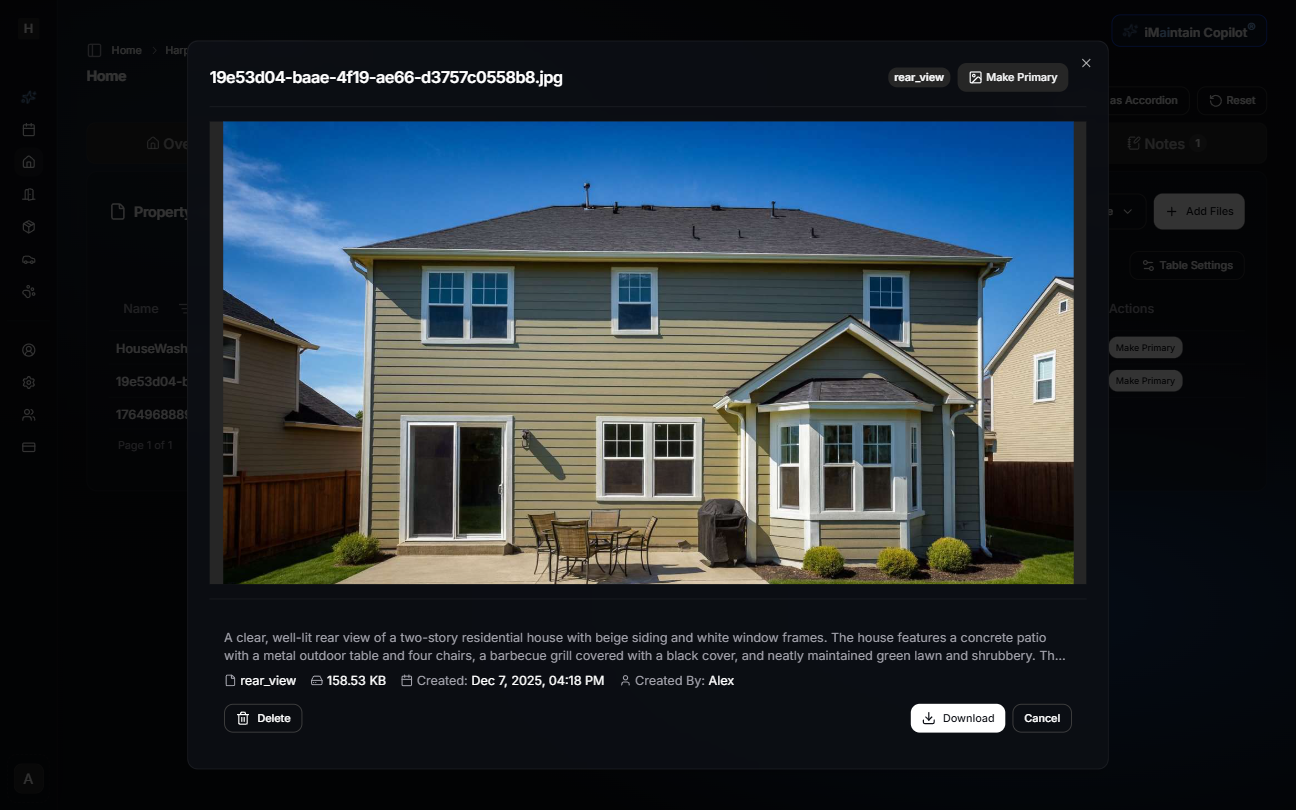
Clicking on any file opens a full detail viewer where you can:
- View the full image or document
- Read the extracted description
- See metadata such as file size, category, and timestamps
- Download the file
- Delete the file
- Mark it as the primary property photo
Primary Property Image
You can designate one uploaded photo as the Primary property image. This photo is used throughout the app to represent the property.
From either view (table or card), use the Make Primary button to update it.
Using Files with iMaintain Copilot
All uploaded files—whether images or documents—are indexed and become discoverable using iMaintain Copilot. AI analysis ensures that the Copilot understands the content, not just the file name.
Examples
Ask about a past service:
"How much did I spend on my last house power washing?"
Ask about a specific file:
"Show me the invoice from the Raleigh window cleaning company."
Ask about a document summary:
"What services were included in my last house washing invoice?"
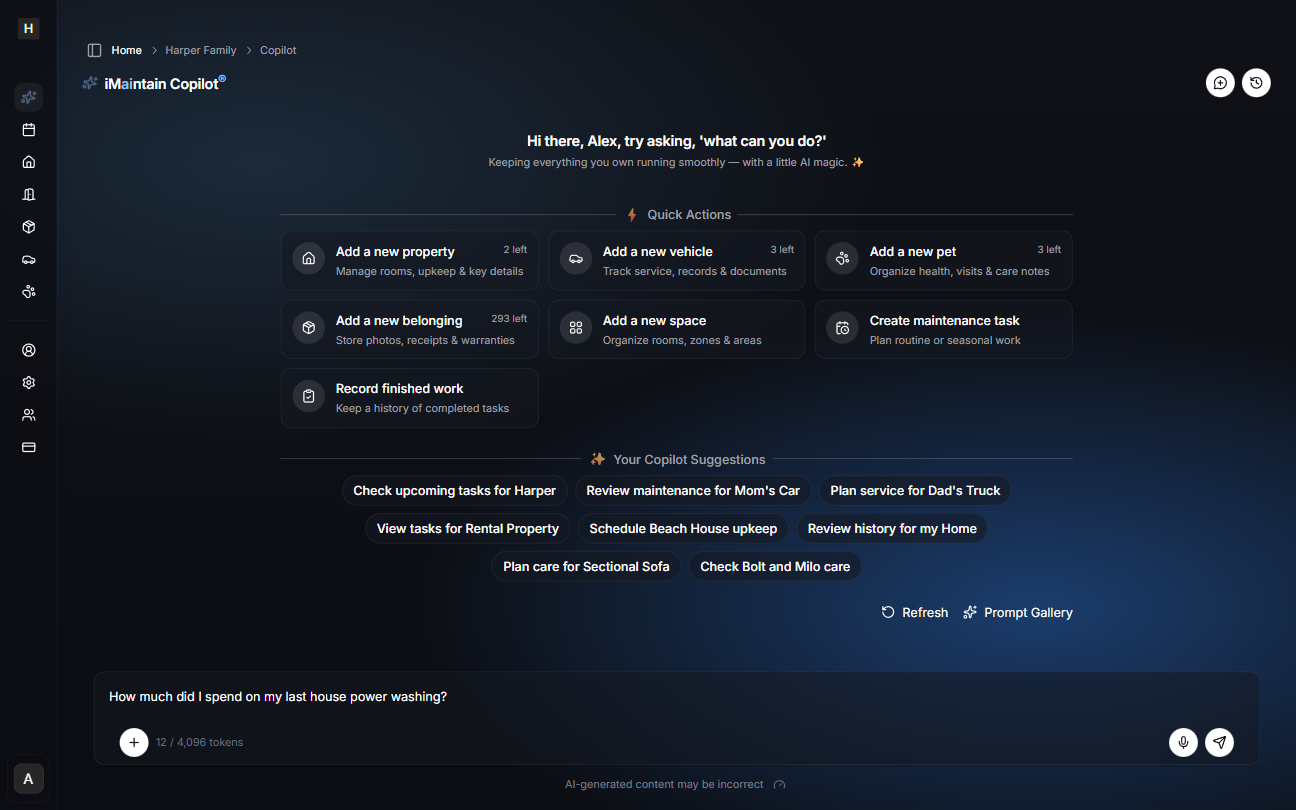
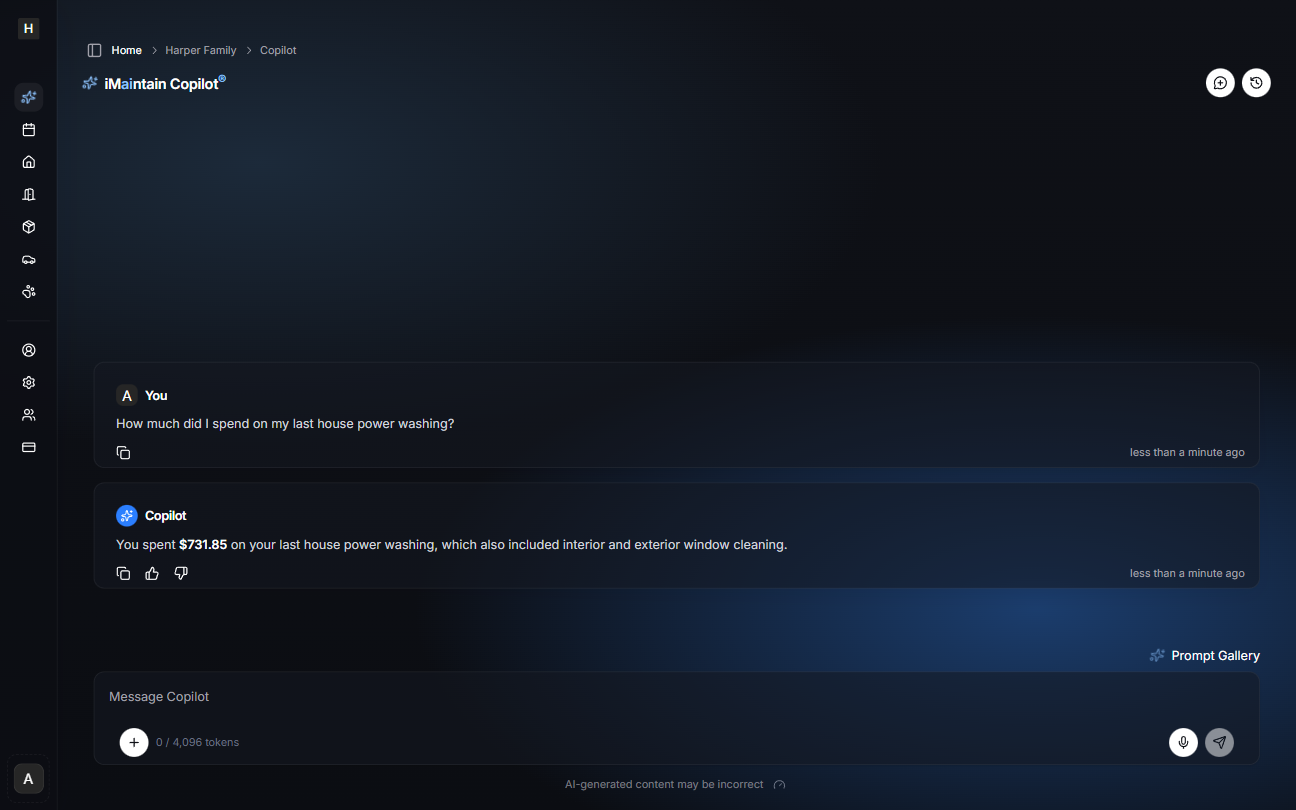
The Copilot can pull answers directly from the extracted content of uploaded files, even when the asked question does not match the wording in the file.
File Categories and Searchability
As part of the upload process, files are automatically categorized (for example, front_view, rear_view, other). You can also filter files by:
- Category
- File type
- Created date
Files are included in semantic search automatically, making them fully accessible through natural language queries.
Related
- Adding properties - Set up your property
- Property maintenance - Link files to maintenance tasks
- Property rentals - Link files to rental periods
- Property notes - Add context to your files
- Copilot for properties - Get AI-powered insights from your files