

Overview
When a forwarded email arrives in your Inbox, iMaintain can read the message, summarize what it found, and suggest a step-by-step plan — link the right asset, log maintenance, set a reminder, add a rental trip, or add a property stay. Nothing saves until you review and confirm each step.
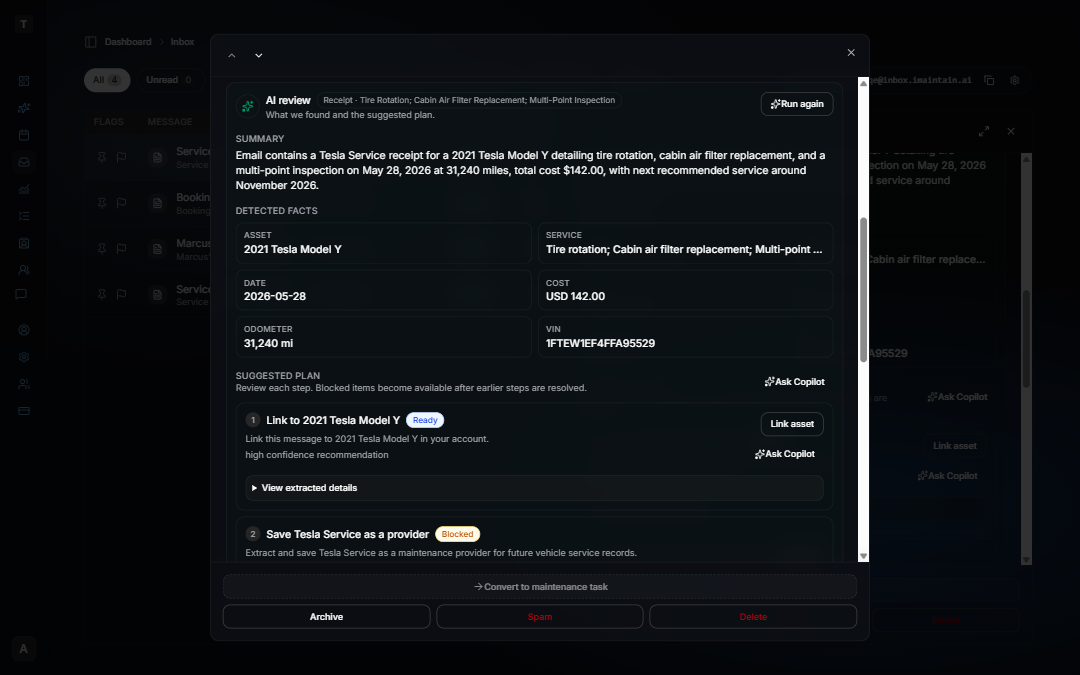
Open any forwarded message and click Run analysis in the AI review panel. iMaintain shows a summary, detected facts (dates, amounts, guest names, reservation IDs, and similar), and a numbered Suggested plan with actions you can take one at a time.
Nothing saves automatically
Suggested plans are recommendations, not automatic updates. Each step shows a status such as Ready, Needs input, or Completed. You stay in control: review the prefilled details, choose the correct asset when more than one matches, and confirm before iMaintain writes anything to your records.
Common plan steps
Depending on the email, your plan may include steps such as:
- Link asset — connect the message to the right vehicle, property, pet, or belonging.
- Create or link vehicle or Create or link property — match or create the asset when the email names one that is not linked yet.
- Log maintenance — add a service record with date, cost, vendor, and notes prefilled from the email.
- Set reminder — schedule a follow-up based on due dates or mileage mentioned in the message.
- Review trip — open a prefilled rental trip on a vehicle (common for Turo confirmations).
- Review stay — open a prefilled rental period on a property (common for VRBO, Airbnb, or direct booking confirmations).
- Cancel trip or Cancel stay — confirm a cancellation when a platform sends a cancel email.
When a step is ready, use the action button on that step. When you need to check details first, expand View extracted details or use Ask Copilot for help working through the plan.
Service receipts and invoices
Forward a shop receipt, contractor invoice, or warranty email and run analysis. iMaintain typically suggests linking the message to the matching vehicle, property, or other asset, then logging the service with cost and date prefilled.
Good examples:
- Oil change or tire service receipts
- HVAC or appliance repair invoices
- Vehicle service records with VIN or model details
- Property maintenance invoices tied to a named home
If the email names a vehicle or property that is not in your account yet, a step may suggest creating or linking that asset before logging maintenance.
Turo and vehicle rental confirmations
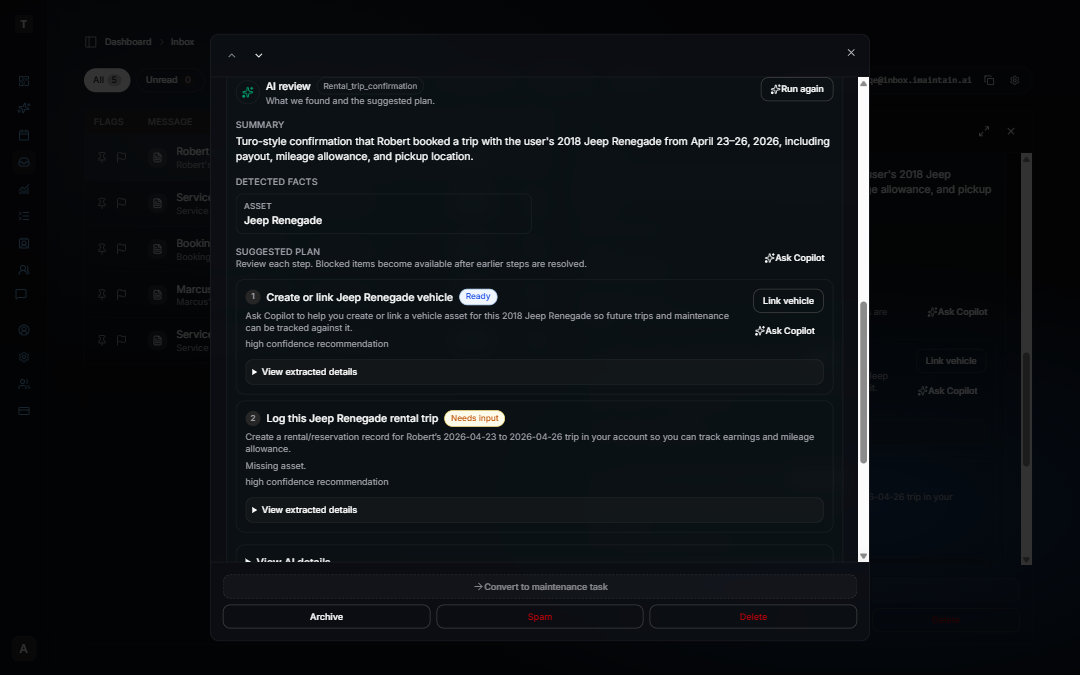
Forward a Turo trip confirmation and run analysis. iMaintain reads the reservation ID, guest, dates, earnings, and vehicle details, then suggests linking the vehicle and adding or updating the trip on that vehicle's Rentals tab.
Typical flow:
- Link vehicle — match the vehicle named in the email, or pick the correct one when several are similar.
- Set usage to Short-term rental (optional) — when the vehicle is not already set up for rentals.
- Review trip — open the Add trip dialog prefilled with guest, dates, payout, and reservation ID. Save when it looks right, or use Confirm linked when no edits are needed.
Re-forward the same confirmation and iMaintain matches by reservation ID to update or confirm without duplicating the trip. Cancel emails follow a similar path — review and confirm the cancellation on the vehicle's Rentals tab.
See Vehicle rentals for how trips fit into fleet reporting and maintenance history.
VRBO, Airbnb, and direct booking confirmations
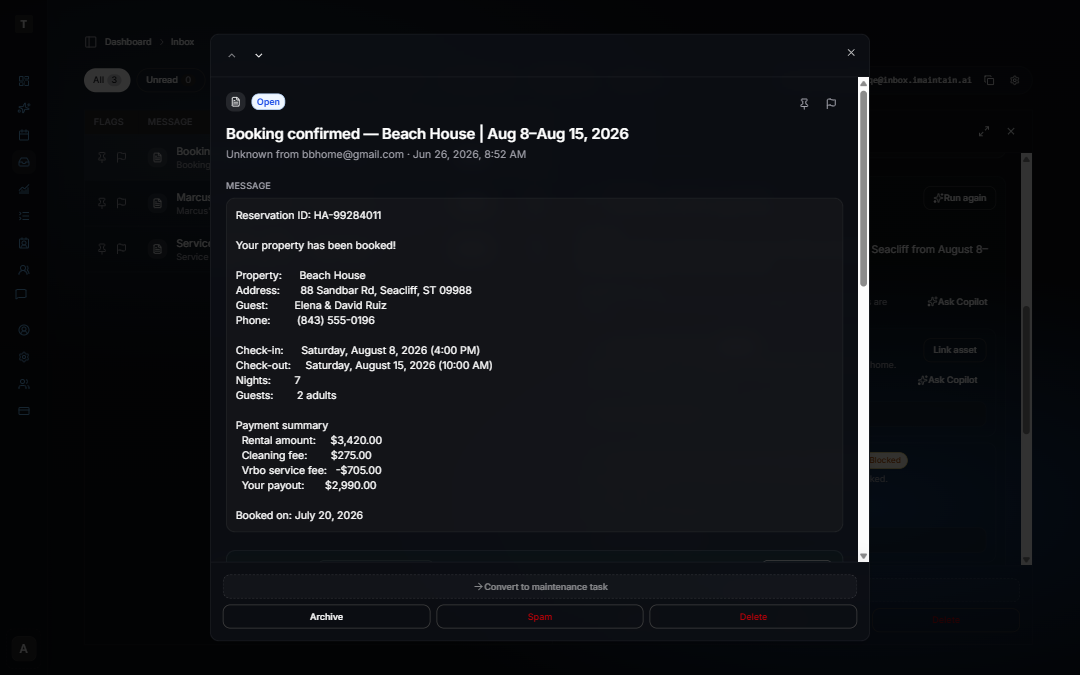
Forward a stay confirmation from VRBO, Airbnb, a property manager, or a direct booking channel and run analysis. iMaintain pulls out the guest, dates, reservation ID, payout, and property name, then suggests linking the property and adding or updating the stay.
Typical flow:
- Link property — match the property named in the email. When two similar properties match, pick the correct one before the stay is created.
- Review stay — open the Add rental dialog prefilled with guest, dates, payout, and reservation ID. Save when it looks right, or use Confirm linked when no edits are needed.
Re-forward an updated confirmation and iMaintain matches by reservation ID to update without creating a duplicate stay. Cancel emails suggest confirming the cancellation on the property's Rental tab.
See Property rentals for how stays connect to turnover tasks, files, and reporting.
Expand the message for a closer look
On desktop, use the expand control in the Inbox detail header to open the message in a wider dialog — useful when reviewing a long suggested plan or comparing detected facts to the original email. Previous and next controls work in the expanded view so you can step through messages without closing it.
When analysis does not find a match
If iMaintain is unsure which asset to use, the plan may ask you to pick from a short list or create a new asset. If the email type is unclear, the summary still helps — you can save attachments manually, convert the message to a maintenance task, or ask Copilot what to do next.
Run analysis again after you add missing assets or update your records. Earlier completed steps are preserved when you re-run analysis on the same message.